AI Workflows · Intermediate · ~45 min setup
Automatically Categorize and Summarize Gmail With AI
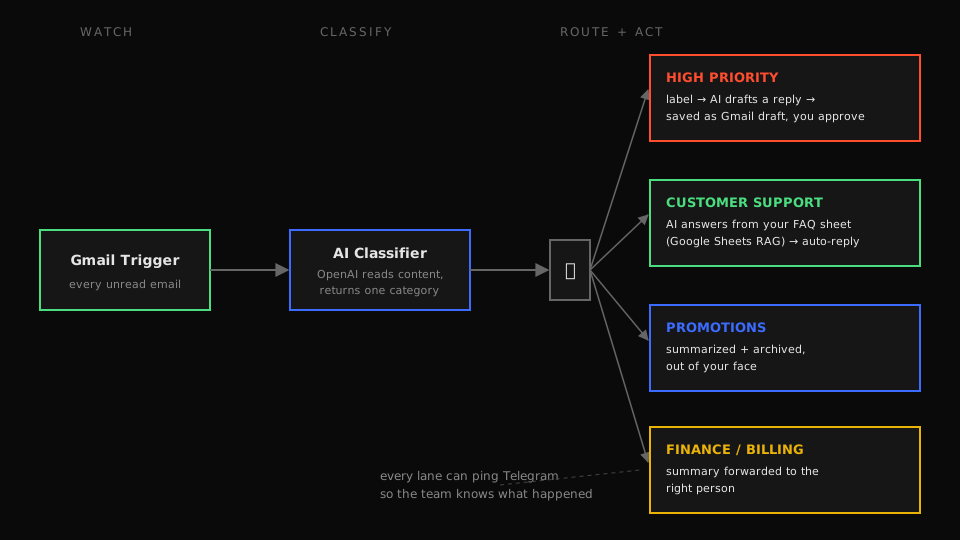
The fastest DIY way to automatically categorize and summarize Gmail with AI is a single n8n workflow. A Gmail trigger hands every unread email to an OpenAI classifier, which sorts it into one of four lanes: High Priority, Customer Support, Promotions, or Finance. Urgent emails get a reply drafted for your approval, support questions get answered automatically from your own FAQ spreadsheet, and everything else gets summarized and filed. It costs a fraction of a cent per email and takes about 45 minutes to set up. No Zapier subscription, no fees per task.
What this actually does to your inbox
Open Gmail tomorrow morning and instead of 40 unread messages you see:
- Urgent emails already have a reply drafted, written by AI, sitting in your Drafts, waiting for you to read, tweak, and send. Nothing important goes out without a human.
- Support questions were answered overnight. The AI looked up the answer in your FAQ sheet and replied in the thread. You get a Telegram ping confirming each one.
- Promotions are gone. Each one is summarized into a line, labeled, and archived.
- Billing emails get summarized and sent on, to the finance address you set. Our version ships with a placeholder so nothing goes out until you fill it in.
Every email also gets a Gmail label, so your inbox stays organized and nothing is hidden. It's sorted, not deleted.
The build, lane by lane
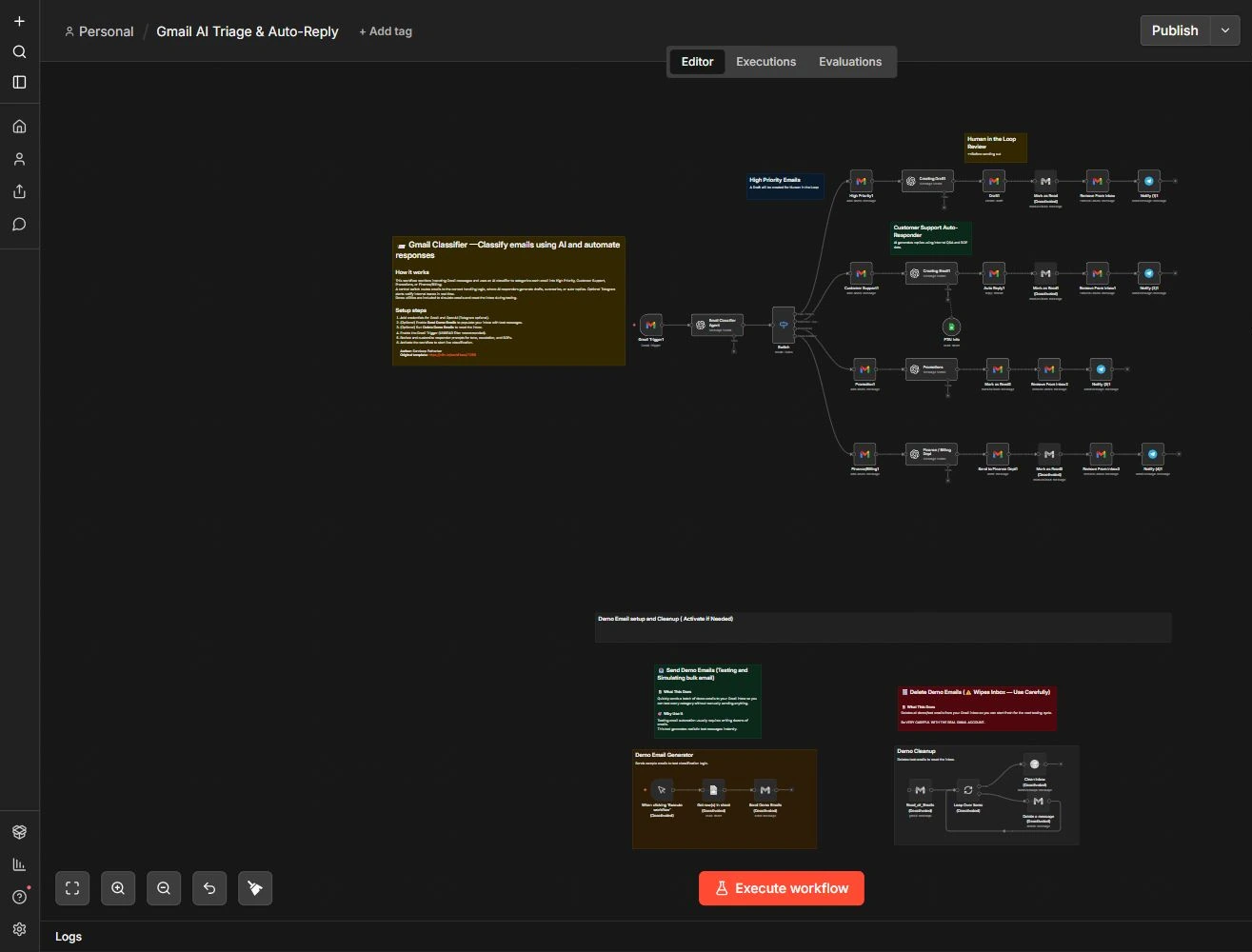
The workflow is 43 nodes, but really it's four copies of the same simple pattern hanging off one classifier. Here's what it looks like imported into n8n, then each piece with the decisions that matter.
1. Intake: the Gmail trigger
A Gmail Trigger node polls for unread messages. Two settings matter. Keep the UNREAD only filter on, otherwise it reprocesses your whole inbox on the first run. And start the polling interval at a few minutes. You can tighten it later.
2. The classifier: one prompt, structured output
Every email's subject and body go to an OpenAI node acting as a classifier agent. The prompt does two jobs at once: it normalizes the messy email into clean text, and it returns strict JSON like {"classification": "customer_support"}.
The trick that makes this reliable: force JSON output, and list the allowed categories in the prompt with a short definition and an example for each. Vague category names like "Important" or "Other" are where email classifiers go to die. A concrete definition, like "Finance/Billing: invoices, payment confirmations, anything with an amount due," gets you over 95% accuracy even on a small model. The template ships on GPT-4.1 mini and that's plenty.
A Switch node then reads that JSON field and routes to one of four branches.
3. High Priority lane: keep a human in the loop
This is the lane that touches emails that could cost you money or reputation, so it deliberately does not send anything. It labels the email, has OpenAI draft a reply plus a short internal note, saves that reply as a Gmail draft, and pings Telegram. The human stays in the loop exactly where judgment matters.
4. Customer Support lane: RAG from a spreadsheet
The clever part of this template. The support responder is an OpenAI node with a Google Sheets tool attached. When a question comes in, the model looks up your internal Q&A and SOP rows and writes an answer grounded in your information, not its general knowledge. That's retrieval augmented generation with a spreadsheet as the knowledge base: no vector database, no embeddings pipeline, and for a few hundred FAQ rows it works remarkably well.
The reply goes out in the thread automatically. If that makes you nervous, change the Gmail node's operation from Reply to Create Draft. The rest of the lane is unchanged.
5. Promotions and Finance lanes: summarize and move on
Promotions get a short AI summary with a suggested action, then get marked read and archived. Finance and Billing emails get summarized into a subject and message and sent on as a new email. One thing we changed from the original template: it shipped with this node replying to the original sender, which meant your vendors would receive AI summaries of their own invoices. Our version uses a placeholder recipient, and the guide shows you where to put your bookkeeper's address. Both lanes ping Telegram so decisions leave a trail.
Setup gotchas nobody warns you about
- Gmail OAuth is the slow part. n8n needs a Google Cloud project with the Gmail API enabled and an OAuth consent screen. Budget 15 of your 45 minutes for this. The full guide below walks through every click.
- Create the four Gmail labels first. The workflow applies labels by ID. If "High Priority", "Customer Support", "Promotions", and "Finance/Billing" don't exist, those nodes fail.
- Replace the template's spreadsheet. The Sheets nodes point at a demo sheet. Make your own copy with your own FAQ rows and swap the document ID in two nodes.
- Telegram is optional. Delete every notification node and nothing else breaks. Or swap them for Slack in two minutes.
- Careful: the template ships with demo utilities, and one of them deletes emails. There's a disabled "Send Demo Emails" branch for testing, and a "Delete Demo Emails" cleanup branch that removes messages in batches. Leave the cleanup branch disabled on any real account. We flag exactly which nodes in the guide.
What it costs to run
Running n8n yourself is free (any €4 VPS or a Raspberry Pi handles it). OpenAI usage on a mini tier model (the template defaults to GPT-4.1 mini) runs about $0.001 to $0.005 per email for classification plus one drafted reply. A month of 500 emails costs less than a coffee. The same steps across 500 emails on Zapier would put you into three figures a month.
Make it yours
The four categories are just prompt text and switch cases. Rename them, add a fifth ("Recruiting"? "Press"?), or route by client instead of by type. Swap OpenAI for Claude or a local model through Ollama if email can't leave your own servers. Point the Finance lane at your accounting inbox. Add a weekly digest node that sums up what the triage did. The skeleton is the reusable part: classify once, then route to a handler for each category.
Get the workflow, ready to import
Drop your email and we'll send the sanitized n8n workflow file plus the full setup guide: every credential, every gotcha, and prompts you can paste straight in.
Rather skip the setup? Book a build call →
FAQ
- How do I automatically categorize emails in Gmail?
- Gmail's own filters only match fixed things like sender or subject line. To categorize by what an email actually says, connect Gmail to an AI model. This free n8n workflow reads every unread email with OpenAI, applies one of four Gmail labels, and handles the reply. Setup takes about 45 minutes and needs no code.
- Will it send replies without my approval?
- Not for anything important. High priority emails only get a draft saved in Gmail, and a human hits send. The customer support lane does reply on its own out of the box, but you can switch that node from Send to Create Draft until you trust its answers.
- Do I need to pay for n8n?
- No. Running n8n yourself is free, and a Docker container on any small VPS handles this comfortably. n8n Cloud starts around €20 a month if you'd rather not manage a server. The only running cost is OpenAI tokens, a fraction of a cent per email.
- Can I use Claude or Gemini instead of OpenAI?
- Yes. Classification is easy for any modern model. Swap the OpenAI model nodes for Anthropic or Google Gemini nodes. The prompts and the rest of the workflow stay the same.
- How is this different from Gmail's own tabs and Gemini features?
- Gmail's tabs sort by sender type using fixed rules. This reads the actual content, sorts into categories you define, writes reply drafts, answers support questions from your own FAQ data, and notifies your team. Gmail does none of that.
- Can AI sort my emails automatically?
- Yes. Connect your inbox to an AI model and it reads each new email, works out what it is, and files it for you. This free n8n workflow does that for Gmail. OpenAI reads every unread message, sorts it into High Priority, Customer Support, Promotions, or Finance, and applies the matching label. Anything sensitive waits as a draft for you to approve.
- How do I automatically label emails in Gmail?
- Gmail filters can label by sender or a keyword, but they cannot judge what an email is really about. To label by meaning, send each message to an AI model first. This workflow reads the email, picks a category, and a Gmail node applies the label you mapped to it. Create the four labels once and every new email gets tagged on its own.
- How do I summarize emails in Gmail?
- Add a summary step to the workflow. Once the AI has sorted an email, it writes a one line summary and a suggested next action. Promotions get summarized and archived, and billing emails get summarized and passed to the address you set. You skim the gist instead of opening every thread.
- What is email triage and how do I automate it?
- Email triage means sorting your incoming mail by how urgent it is and what it needs before you start replying. To automate it, an AI model reads each email and routes it. Urgent ones get a draft reply waiting for you, support questions get answered from your FAQ sheet, and the rest get summarized and filed. This workflow runs that triage every few minutes without you opening the inbox.
- Do I need to know how to code to set this up?
- No. You import the workflow file, connect your Gmail and OpenAI accounts through a setup screen, create four labels, and edit the category descriptions in plain English. The illustrated guide covers every click. The slow part is the Google sign in for Gmail access, not any coding.