The full setup.
You connect Claude to Apify once. Apify is the service that actually pulls the reviews. After that, you just ask in plain English and Claude does the run: it pulls every review, reads them, and hands you a sheet. The setup takes about ten minutes. Each audit after that takes about ten more.
What you need
- A paid Claude plan with connectors. Pro ($20/mo) works, Max ($100/mo) gives you more headroom
- An Apify account. You sign in once to connect it, and the free tier is enough to start
- About two dollars per audit in usage
Connect Claude to Apify (one time)
This is the part that does the heavy lifting, and you only do it once. You link Claude to Apify through a connector. After that, Claude can run any Apify scraper for you just by naming it. No dashboards, no code.
In Claude, open Settings → Connectors → Add custom connector and enter these two values:
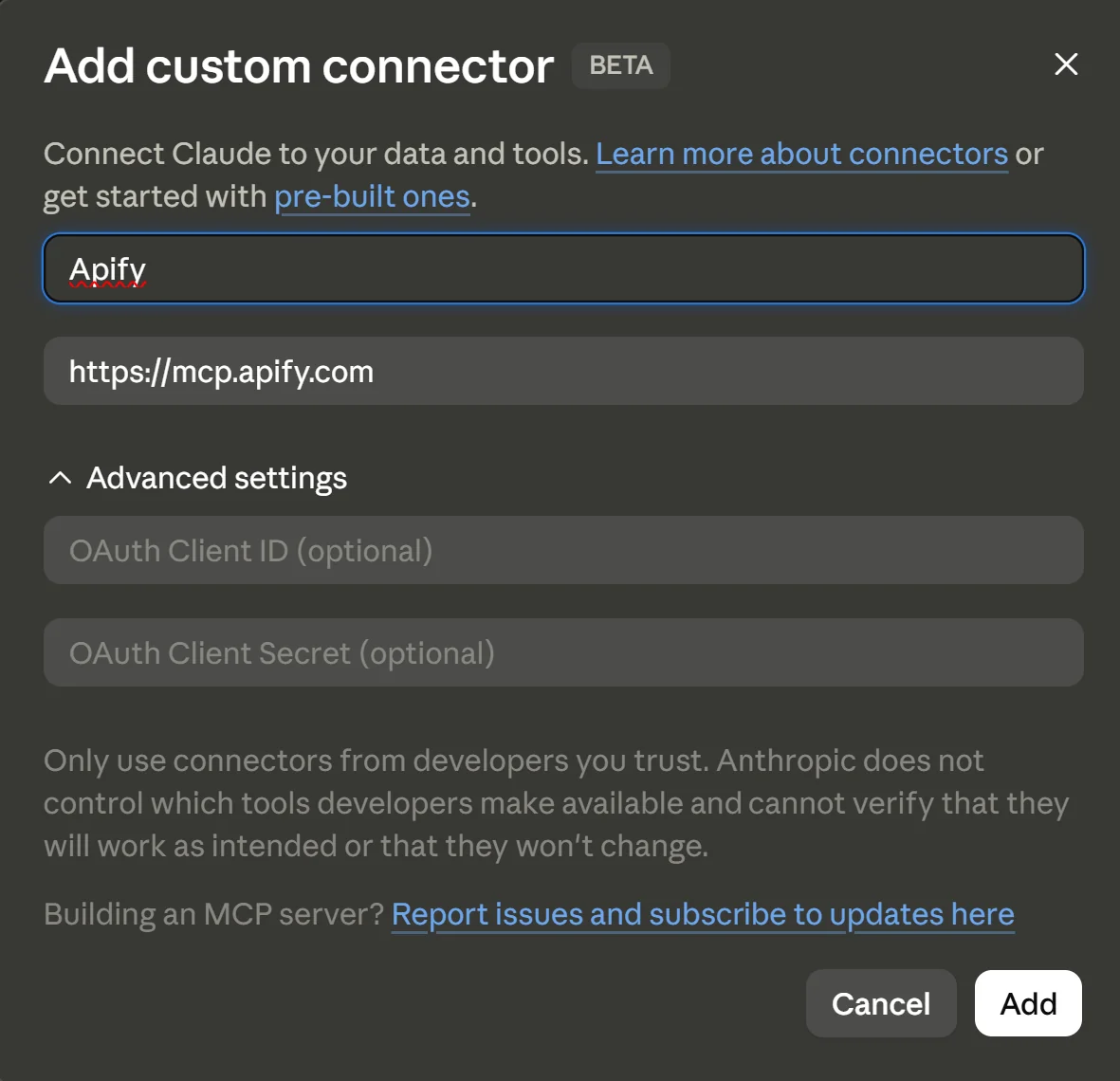
Click Add. Apify will ask you to verify and sign in, which links your Apify account to Claude. Approve it. (No API token to copy, the sign in handles it.)
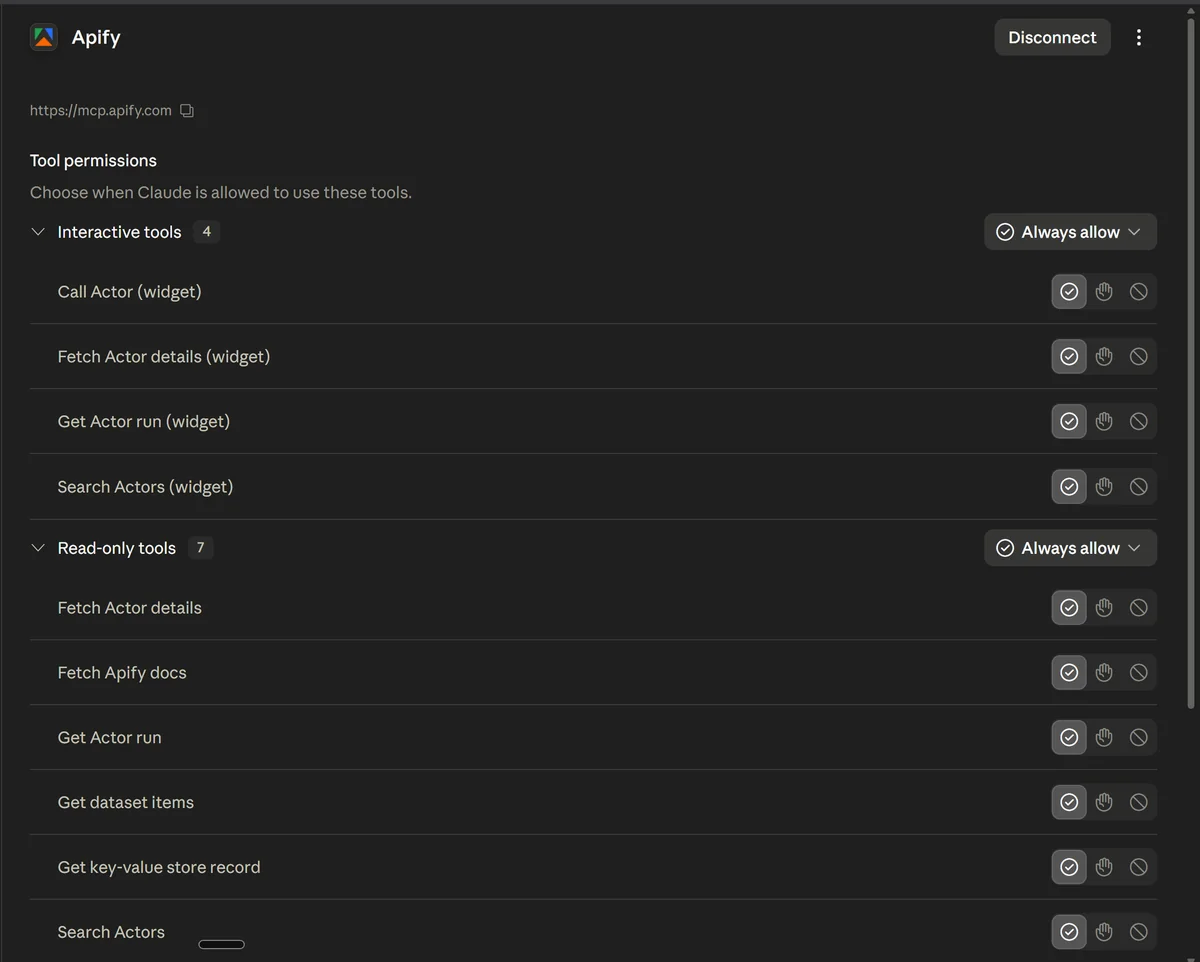
That’s the whole setup. From here, it’s just conversation.
Check the connection works
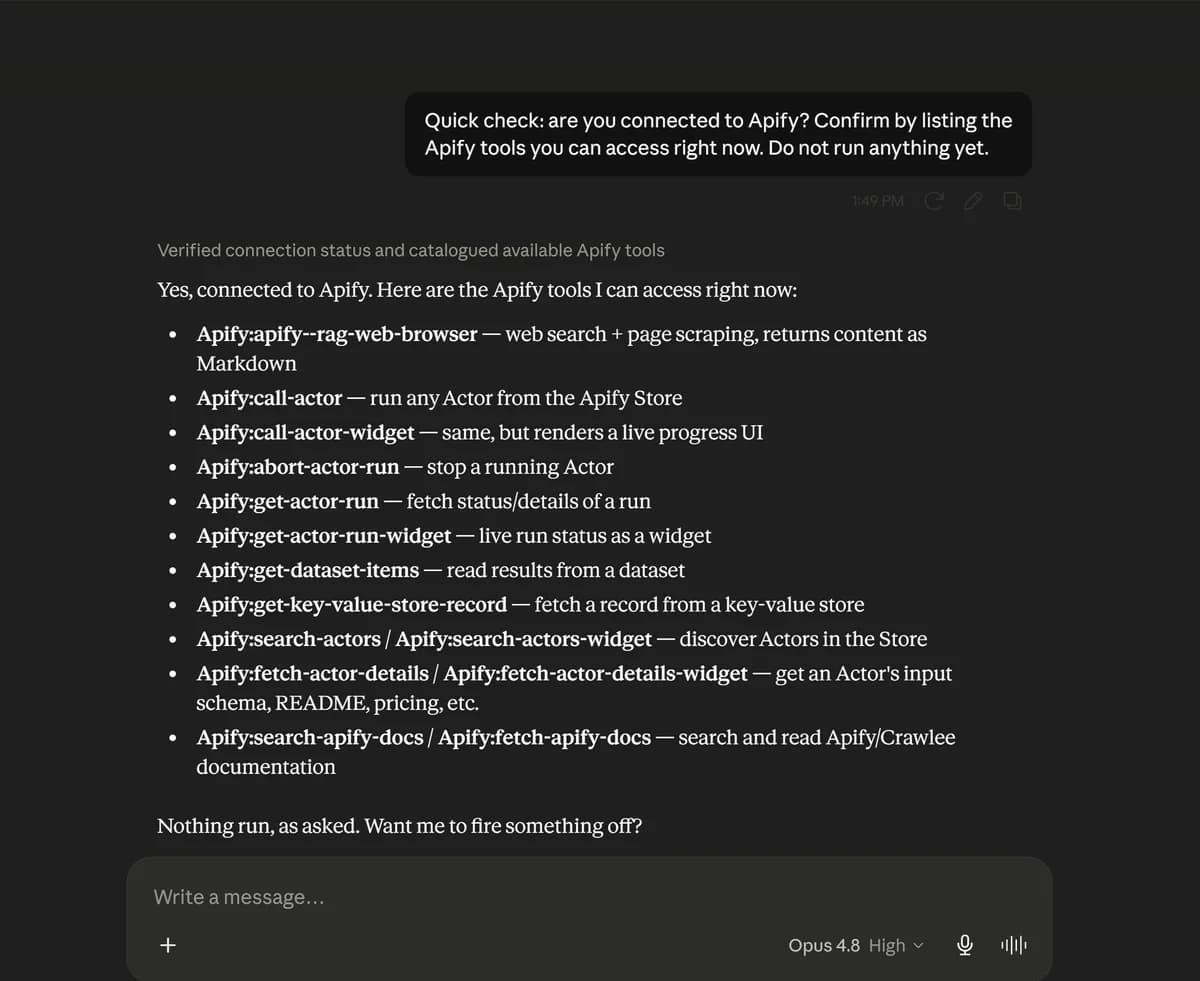
Before the real run, make sure Claude can actually reach Apify. Paste this. It only checks the connection, so it doesn’t run anything or cost a cent.
Quick check: are you connected to Apify? Confirm by listing the
Apify tools you can access right now. Do not run anything yet.
If Claude lists its Apify tools, the connection is live and you’re ready. If not, reopen the connector in Settings and reconnect.
Point Claude at the Google Maps scraper
Now point Claude at the exact scraper. Open the Google Maps Scraper on Apify (or search the Apify Store for Google Maps Scraper by Compass). Apify calls each scraper an actor, so that’s the word you’ll see on its page.
On the actor page, click the API button (top right), then choose MCP configurator.
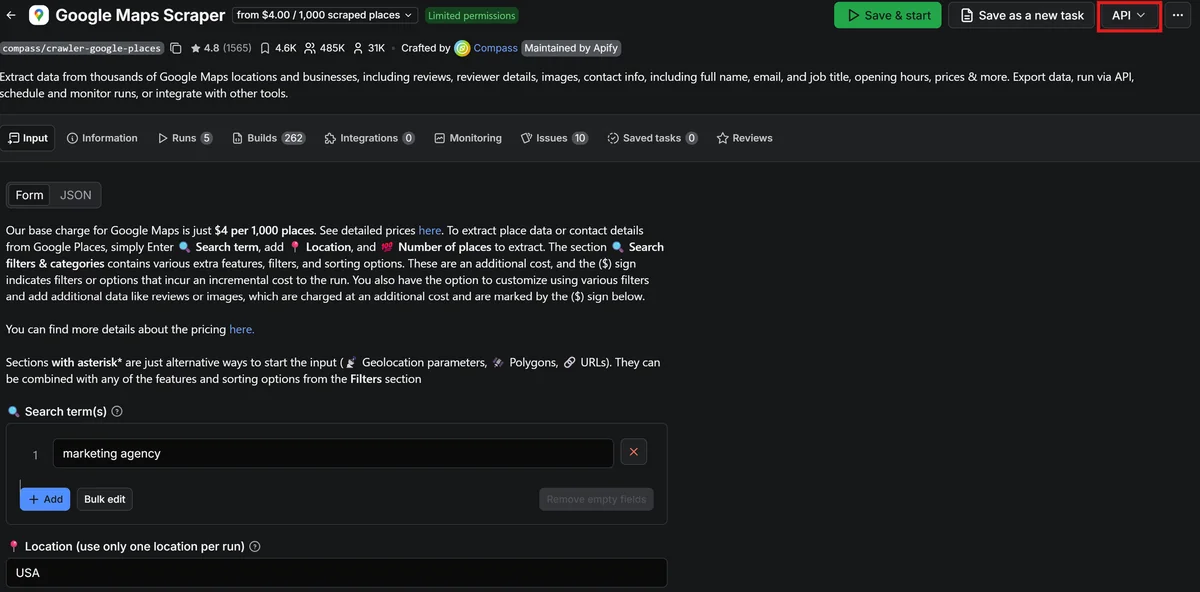
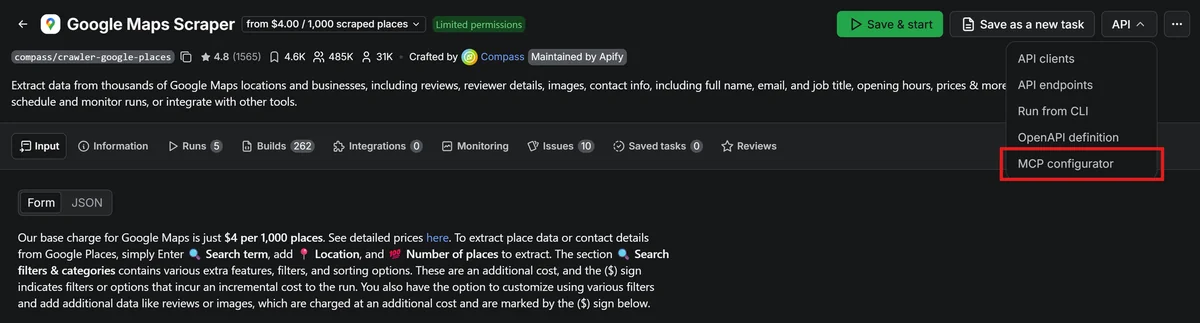
That opens the scraper’s MCP server URL. Copy it.

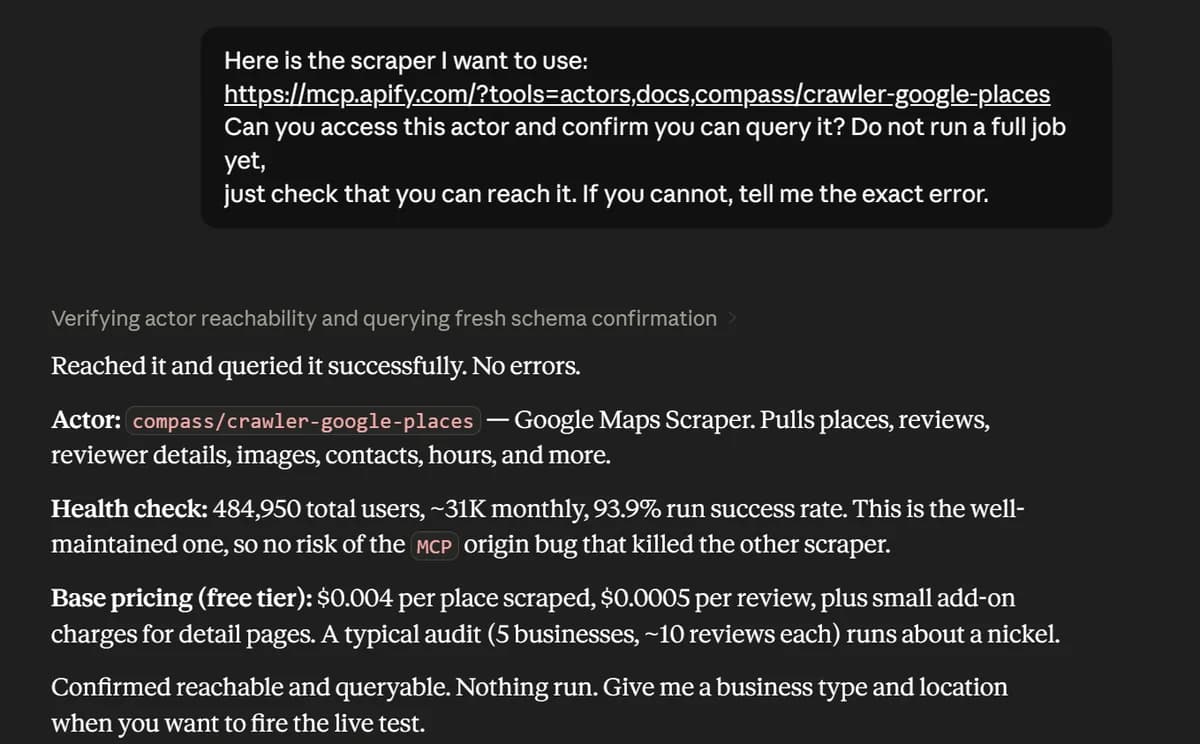
Then paste that URL into Claude together with this prompt. It checks that Claude can reach and query the scraper before you run anything. (The URL is already included below.)
Here is the scraper I want to use:
https://mcp.apify.com/?tools=actors,docs,compass/crawler-google-places

Can you access this actor and confirm you can query it? Do not run a full job yet,
just check that you can reach it. If you cannot, tell me the exact error.
Run a small live test
Now run it. Paste this. Claude asks what to search, then pulls a real sample so you see exactly what comes back.
Let's run a small live test. First, ask me what to search: the type of
business and the location. After I answer, run the Google Maps scraper for 5
businesses, and for each one pull up to 10 reviews sorted lowest rating first so
any complaints show up. Then show me the complete raw data for one business, every
field, without skipping or summarizing, and confirm the review text is actually there.
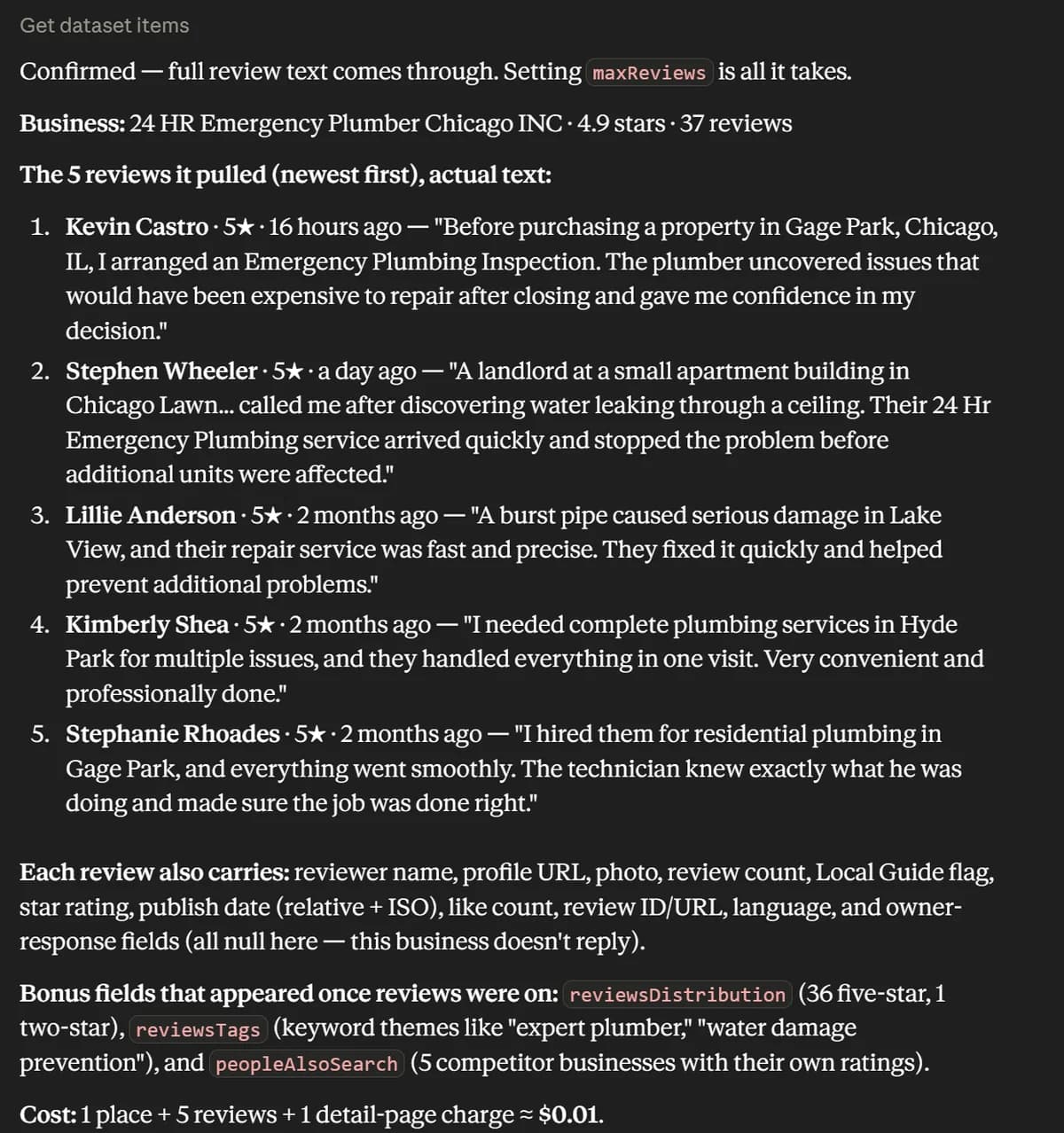
This is the real run, not a throwaway demo. The reviews are live, and the next step turns them straight into your brief. To audit specific competitors, paste their Google Maps links instead of a business type.
Turn the reviews into the brief
Once Claude has the reviews, give it the analysis prompt. It reads all of them and writes the one page brief, ranked by how often each theme shows up.
You now have the reviews. Produce a one page brief from only what's in the
data. Do not invent counts or complaints that aren't there.

1. The things customers love most, each with how many reviews mention it.
2. The biggest complaints, each with how many reviews mention it. If there
   are none, say "no complaints found" instead of forcing the list.
3. Every recurring theme ranked by frequency, each with a verdict
   (loved / mixed / complaint).
4. Up to three gaps a competitor could win on, only if the reviews support
   them. If they don't, say so.
5. Three specific actions to take next.

Quote one short real review per theme. Flag any reviews that look seeded or
fake.

Then create two actual downloadable files, not text in the chat:
1. The full brief as a downloadable document.
2. The table (columns: Business, Rating, Top complaint) as a downloadable
   CSV I can open in Google Sheets.

Give me a download link for each file.
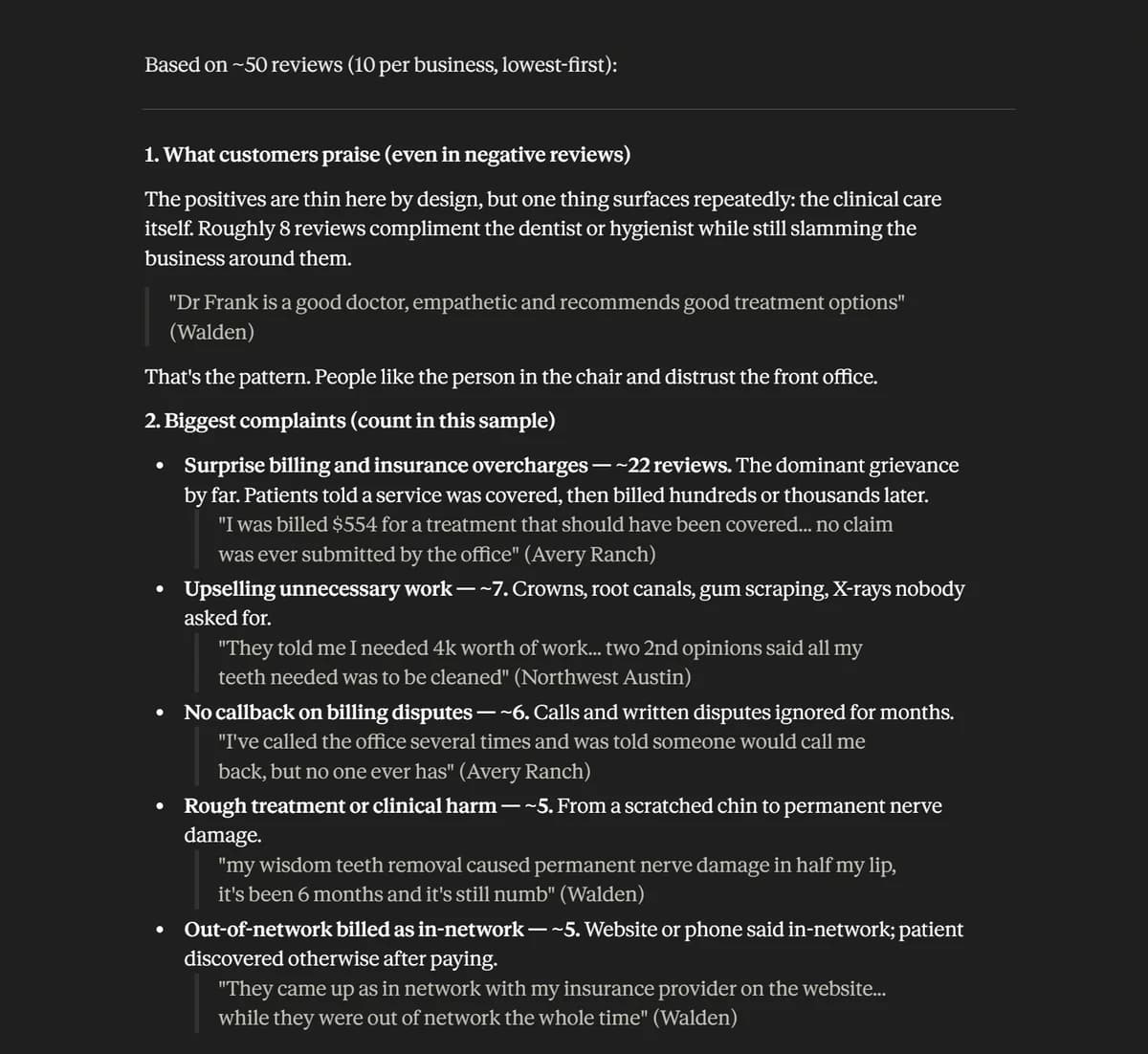
Download your files
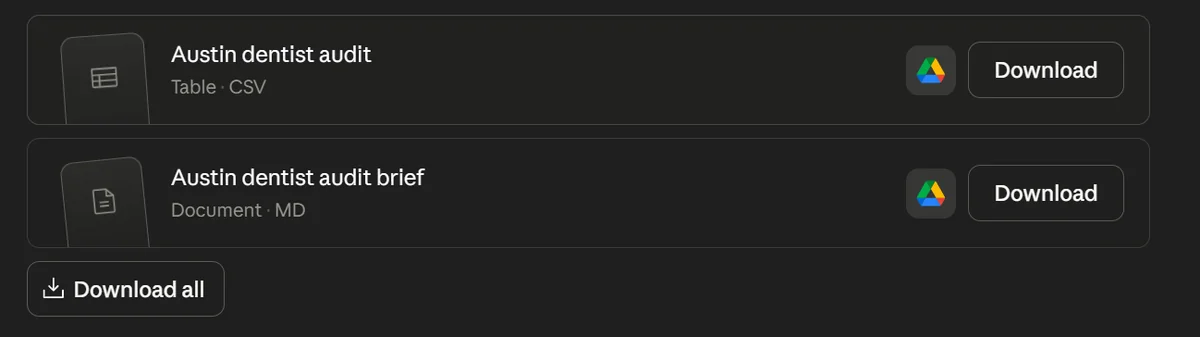
Claude hands you two downloads: the brief as a document and the table as a CSV. Open the CSV in Google Sheets to sort and track it, and keep the brief to share. Click Download on each, or grab both with Download all.
If something breaks
Stuck? Send me the error.
If the connector won’t authorize, Claude can’t reach the actor, or a run errors out, email me at paras@spectrumailabs.com with a screenshot of the error and I’ll help you sort it.
One scraper, many plays
What else you can do with it.
The same scraper pulls places, reviews, contacts, hours, and more. A few ways people use it:
- Build a local lead list. Every dentist in Austin with phone, website, and rating, ready for outreach.
- Find businesses with no website. List the restaurants in your city missing a site, then pitch them web design.
- Audit competitor reviews. This guide: your five closest rivals turned into a weakness map.
- Watch your own reputation. Pull your own reviews on a schedule and catch a bad streak before it grows.
- Map a market for gaps. Every gym across a metro by rating, to spot the areas nobody serves well.
- Pull decision maker contacts. Owner names and emails for B2B outreach to local businesses.
Work with us
Don’t want to set it up?
Book a call and we’ll help you sort it out. We’ll talk through what you want to track and the simplest way to get it running, then point you to the right setup. No pressure, no commitment.
Book a call →We put real work into building and testing this workflow, and the guide is yours to keep. You’ll also get a new workflow every week.