Back to AI tools directory

Descript

Descript guide for practical AI users

An audio and video editor that lets you edit recordings through text, captions, clips, and AI-assisted cleanup.

Quick take

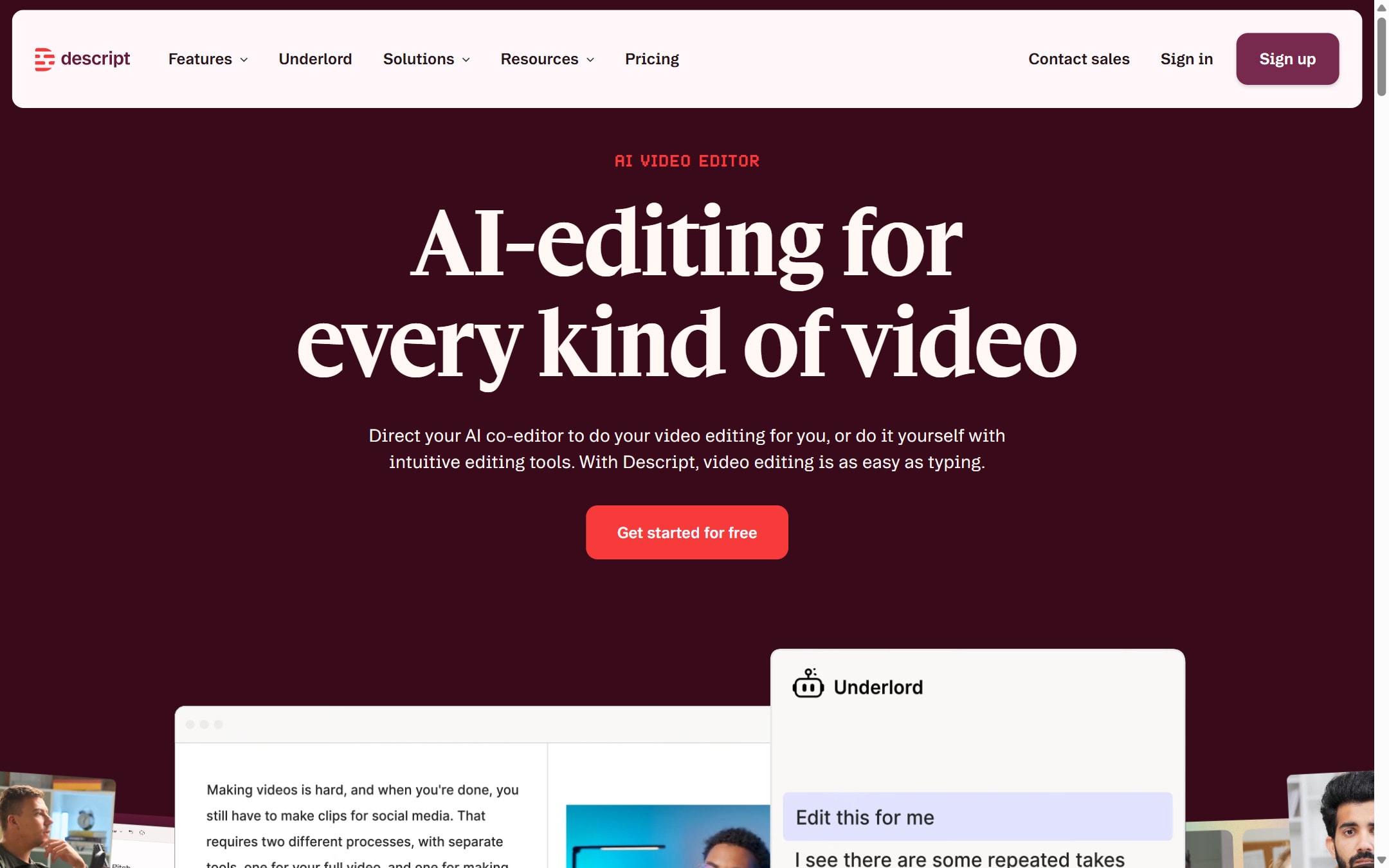
Descript is useful when your raw material is audio or video and the team needs to edit it quickly. The main advantage is transcript-based editing: cut words from the transcript, fix captions, clean audio, create short clips, and export without living inside a traditional timeline all day.

Best fit

Use Descript for podcasts, interviews, webinars, course lessons, screen recordings, social clips, and simple product videos where speed matters more than film-level control.

First setup

1

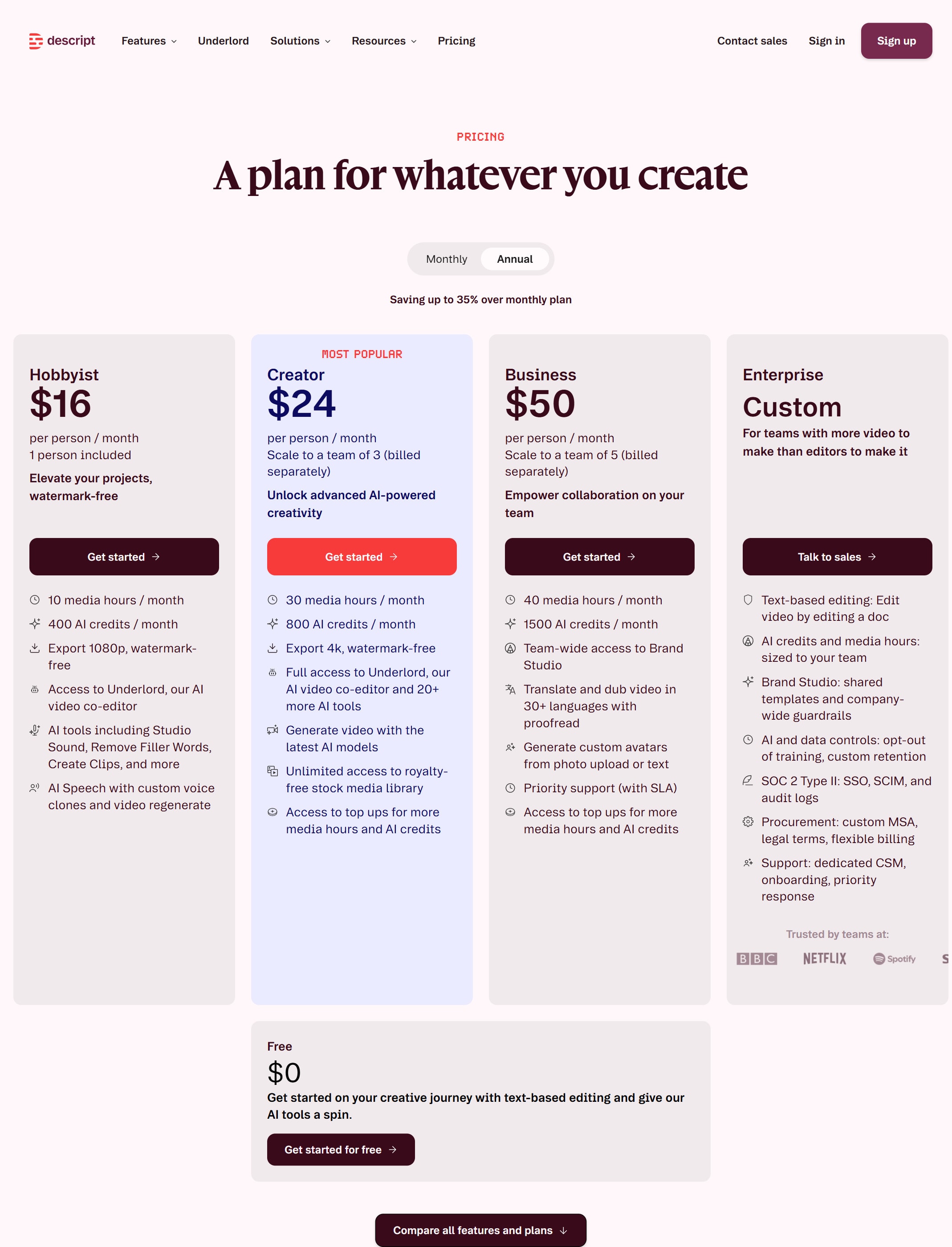
Check the pricing page first because current plans use media minutes and AI Credits for different work.

2

Record or upload one short file before moving a full show or course workflow into Descript.

3

Fix the transcript before cutting heavily. Bad transcript text can make later edits harder to trust.

4

Apply Studio Sound on a short section first and adjust intensity before processing long recordings.

5

Create captions from the script, then check style, speaker names, line breaks, and mobile readability.

6

Export one short clip and one full file to confirm audio, captions, and format settings.

Workflows worth trying

Turn an interview into a finished episode

Useful for podcasters, founders, educators, and marketers who record conversations and need a clean edit.

  1. Import the recording and let Descript transcribe it.
  2. Correct speaker names, product names, acronyms, and technical terms in the transcript.
  3. Cut repeated sections, long pauses, false starts, and obvious mistakes from the script.
  4. Use Studio Sound only if the voice needs cleanup, then listen for overprocessing.
  5. Export the final audio or video after checking the full file once.

Create short clips from a long recording

Useful when one webinar, interview, or lesson needs social clips for distribution.

  1. Start with a source composition that has enough material for clips.
  2. Use Create clips with a clear goal, topic, length, and layout.
  3. Review every generated clip because the tool may pick a moment that lacks context.
  4. Rewrite the hook, adjust captions, and remove weak sections before publishing.
  5. Export in the aspect ratio needed for the channel.

Clean up a course or tutorial video

Useful when the message is good but the recording has pauses, filler words, captions, or audio issues.

  1. Split long lessons into smaller compositions before editing.
  2. Correct the transcript and cut errors from the script view.
  3. Add captions and style them for readability, not decoration.
  4. Use Underlord or AI tools for cleanup ideas, then review the edits manually.
  5. Export a test lesson and watch it on the device students are likely to use.

Prompt recipes

Editing plan

Review this transcript and suggest cuts for repeated points, unclear sections, filler, long pauses, and moments that should become short clips. Keep the speaker's meaning intact.

It gives the editor a practical checklist before cutting the timeline.

Clip selection brief

Find clips for [channel]. Each clip should have a clear point, a strong opening line, and enough context to stand alone. Avoid inside jokes and half-finished thoughts.

It helps Create clips or Underlord focus on usable short-form moments.

Caption check

Review these captions for line breaks, speaker names, technical terms, timing, mobile readability, and words that may be transcribed wrong.

Captions are part of the final asset, so they need a separate pass.

Buying advice

Free is for testing the workflow

Use Free to see whether transcript editing, captions, and exports fit your process before moving real production work into Descript.

Hobbyist or Creator fits regular solo work

Check these plans when one person edits podcasts, lessons, clips, or product videos on a recurring schedule.

Business fits shared production

Use Business when a team needs shared drives, more advanced AI usage, and stronger collaboration around recurring content.

Credits and minutes matter

Before buying, estimate recording time, Studio Sound usage, Underlord usage, generated media, and exports instead of looking only at the plan name.

Watchouts

  • Do not trust the transcript without checking names, numbers, acronyms, and product terms.
  • Do not apply Studio Sound to a long file before testing a short section.
  • Do not publish generated clips without checking whether the clip has enough context.
  • Do not assume captions are correct because they were generated from the script.
  • Do not use Descript as a replacement for a full video editor when the project needs detailed motion, color, or compositing work.

Official sources to check

Best for

  • Podcast and video editing
  • Repurposing recordings into clips
  • Captions, cleanup, and simple content production

Not for

  • Heavy film-grade editing
  • Teams that do not record audio or video content

How to use it well

Upload one recording, fix the transcript, remove obvious mistakes, add captions, and export one short clip before moving a full content workflow into it.

Pricing note

Free and paid plans are listed on Descript's official pricing page.

We link to Descript pricing instead of copying every price into this page. That is safer because AI tool pricing, usage limits, and plan names change often.

How to decide

Choose this if you already create recordings and want editing to be faster.

Related tools

Compare Descript with other tools in nearby categories.

Midjourney

Midjourney

Paid only

An AI image generation tool known for strong visual style, concept art, and creative image exploration.