Back to AI tools directory

Canva

Canva guide for practical AI users

A design platform with AI features for social posts, presentations, images, videos, and brand assets.

Quick take

Canva is the tool I would give a non-designer who needs useful visual assets today. It is good for social posts, thumbnails, simple decks, flyers, ads, lead magnets, and quick video clips. The trap is thinking the template has done the thinking for you. Canva can make something look finished before the message is actually clear.

Best fit

Use Canva when the job is visual, repeatable, and tied to a channel. It works best when you know the audience, the format, the brand rules, and the one action the asset should drive.

First setup

1

Create one folder for the campaign or content series before you start designing.

2

Add your logo, colors, fonts, and reusable images to Brand Kit if you have access to it.

3

Pick one format first, such as LinkedIn post, YouTube thumbnail, lead magnet cover, or presentation.

4

Write the message in plain text before opening templates. If the message is weak, the design will only hide it for a few seconds.

5

Create two or three versions, then check them on mobile before exporting.

Workflows worth trying

Create a blog promotion pack

Good for turning one article into social assets without designing every piece from scratch.

  1. Pull the article title, one useful quote, one stat, and one short takeaway.
  2. Create a square post, a story format, and a simple carousel using the same colors and type.
  3. Use Magic Write only for short caption options, then rewrite the final caption yourself.
  4. Export the assets and store them in one campaign folder so you can reuse the system next time.

Make a small founder sales deck

Useful when you need a clean deck for a call, not a polished investor presentation.

  1. Start with 6 slides: problem, buyer, current pain, offer, proof, next step.
  2. Use a simple presentation template and remove slides you cannot explain in one sentence.
  3. Use charts or icons only when they make the point faster.
  4. Export as PDF and read it on your phone before sending it.

Build a brand-safe template set

Useful for small teams where different people make posts, reports, and sales assets.

  1. Create one approved template for each recurring asset type.
  2. Lock in fonts, colors, logo placement, and spacing rules.
  3. Add notes inside the template for what should change and what should stay fixed.
  4. Review the first few outputs before letting the team use the templates freely.

Prompt recipes

Asset brief before design

I need a Canva asset for [channel]. Audience: [who]. Goal: [what should happen]. Main message: [one sentence]. Give me 3 layout ideas and the copy for each.

It makes the message and channel clear before Canva starts producing visuals.

Caption options without generic copy

Write 5 captions for this design. Keep them short. Avoid hype. Make the first line specific to [audience pain]. End with one clear next step.

It pushes Canva AI toward usable short copy instead of broad marketing lines.

Thumbnail check

Review this thumbnail idea for clarity. Tell me what a viewer understands in 2 seconds, what is confusing, and what text should be removed.

It treats design as communication, not decoration.

Buying advice

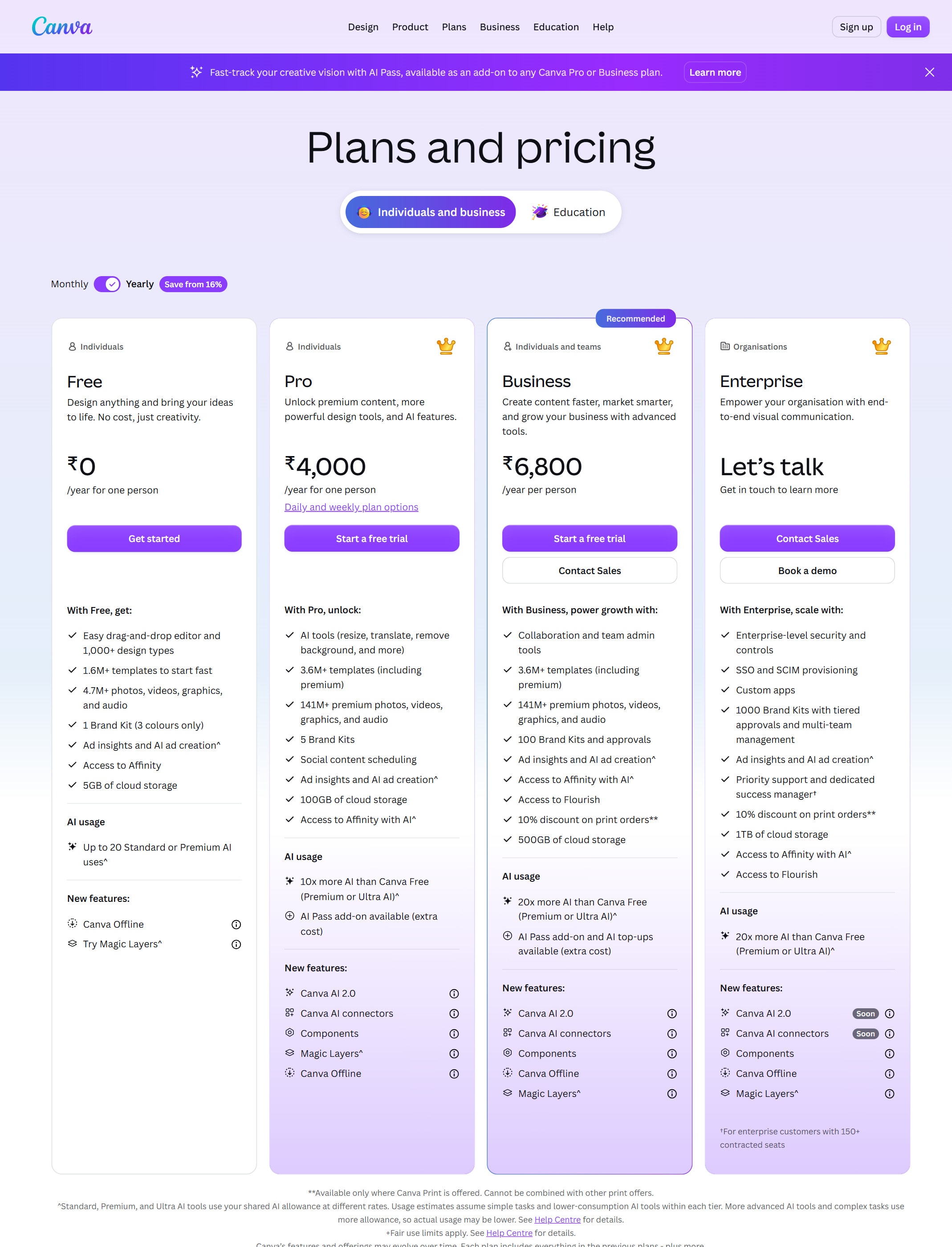
Free is fine for testing layouts

Start free if you only need basic assets and want to test whether Canva fits your workflow.

Pro makes sense when brand consistency matters

Upgrade when you need Brand Kit, premium assets, background removal, Magic Resize, or repeated campaign work.

Business or Enterprise fits teams with controls

Use the business plans when multiple people create assets and you need stronger brand, admin, and approval controls.

Do not upgrade only for AI novelty

Upgrade because it saves production time on real assets, not because a feature demo looked impressive.

Watchouts

  • Do not trust AI-generated images for commercial use without checking rights and brand risk. Canva says it does not guarantee that generated images, designs, and text are cleared for use.
  • Do not use a template unchanged. Many templates look familiar because other people use them too.
  • Do not let the design carry a weak message. If the promise is vague, the asset will still underperform.
  • Do not skip mobile checks. A design that looks clean on desktop can become unreadable in a feed.

Best for

  • Fast marketing graphics
  • Simple presentations and social content
  • Teams without a full-time designer

Not for

  • Highly custom brand systems that need specialist design
  • Advanced video production as the main workflow

How to use it well

Start with one asset size and one audience. Create a draft, check brand fit, remove generic AI wording, and export only after a human review.

Pricing note

Free and paid plans are listed on Canva's official pricing page.

We link to Canva pricing instead of copying every price into this page. That is safer because AI tool pricing, usage limits, and plan names change often.

How to decide

Choose this if you need finished-looking visuals more than deep research or code help.

Related tools

Compare Canva with other tools in nearby categories.

Google

Gemini

Free plan

Google's AI assistant for search-style help, writing, productivity, image work, and Workspace-related tasks.

Midjourney

Midjourney

Paid only

An AI image generation tool known for strong visual style, concept art, and creative image exploration.