Back to AI tools directory

Google

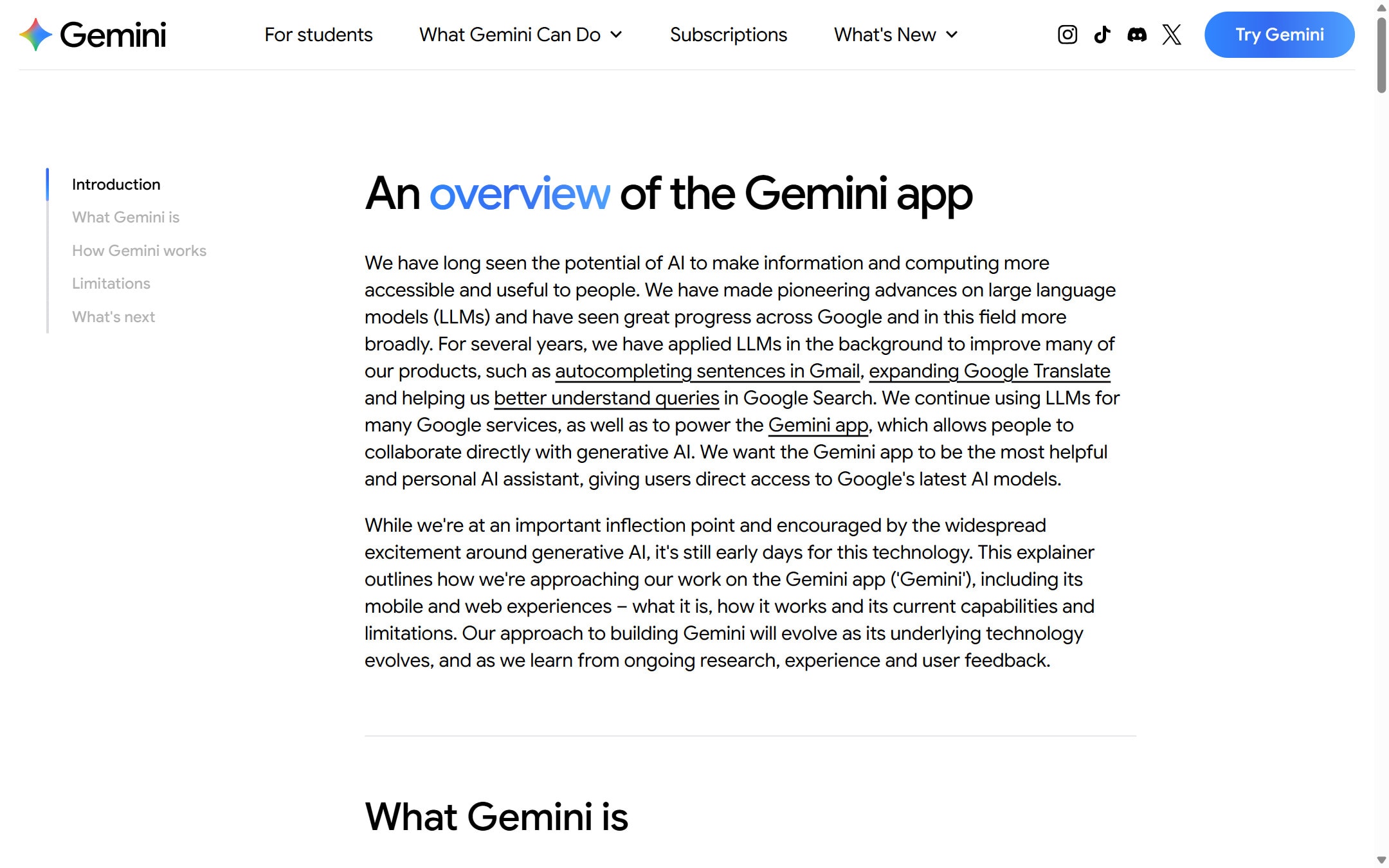
Gemini guide for practical AI users

Google's AI assistant for search-style help, writing, productivity, image work, and Workspace-related tasks.

Quick take

Gemini is strongest when your work already sits inside Google. It can help with research, writing, files, images, and connected Google apps, so it is useful for people who live in Gmail, Docs, Drive, Search, or Chrome. The weak point is focus: because it touches so many Google surfaces, you need to be clear about which source, file, or app it should use.

Best fit

Use Gemini when you want AI help next to Google Search, Google files, Workspace apps, and creative tools. It is a good fit for research reports, study material, content planning, lightweight data review, and daily productivity work.

First setup

1

Open Gemini with the Google account you actually use for work or study.

2

Check which account you are using before uploading files or connecting apps. Personal, work, and school accounts can have different rules.

3

Open settings and review Connected Apps, Keep Activity, and privacy controls before using Gmail, Drive, Photos, or other Google data.

4

Start with one job that benefits from Google context, such as summarizing a Drive file, planning from notes, researching a market, or drafting inside Docs.

5

Ask Gemini to separate source facts, assumptions, and next steps before you reuse the answer.

Workflows worth trying

Build a research brief with source checks

Useful when you need a starting point for a market, competitor, school topic, or product question.

  1. Ask Gemini for a short answer first, not a full report.
  2. Use Deep Research only when the question is worth waiting for and needs several sources.
  3. Review the research plan before Gemini starts the longer report.
  4. Open the sources and mark which claims you trust before writing from the report.

Turn Google files into a working draft

Useful for people who keep notes, reports, spreadsheets, transcripts, or client material in Drive.

  1. Attach the file or connect the relevant Google app only if the data is safe to use.
  2. Ask Gemini to list the facts, gaps, and questions before writing.
  3. Ask for a draft in the exact format you need, such as an email, memo, outline, or slide plan.
  4. Check numbers, names, and claims against the original file.

Use Canvas for a document or simple app

Useful when the output needs editing, structure, or a visual workspace instead of a normal chat answer.

  1. Start Canvas and describe the format you want, such as a doc, quiz, slide outline, code sample, or small app.
  2. Use selection edits to fix one section at a time instead of regenerating the whole piece.
  3. For code or app output, open the code view and check errors before sharing anything.
  4. Export or copy the final result only after you have removed placeholders and checked the facts.

Prompt recipes

Research question with guardrails

Research [topic] for [audience]. Start with a 5-sentence answer. Then list sources to open, facts that seem solid, claims that need checking, and what I should do next.

It keeps Gemini from giving a long answer before you know whether the sources are useful.

Google file summary

Use the attached file only. Summarize the useful points, missing information, risks, and next action. If the file does not answer something, say that clearly.

It narrows Gemini to the file instead of letting it fill gaps with outside guesses.

Canvas draft

Create a Canvas doc for [task]. Audience: [who]. Format: [doc, slide outline, quiz, app, or web page]. Keep it practical. Mark placeholders I need to fill myself.

It tells Gemini the output shape before it starts, which makes Canvas easier to edit.

Buying advice

Start free if your needs are basic

The free plan is enough for testing everyday chat, writing, summaries, and simple research habits.

Upgrade when limits block repeat work

Paid Google AI plans make more sense when you repeatedly need higher usage, larger file work, Deep Research, image or video features, or Gemini inside Google apps.

Check Workspace rules before using company data

Work and school accounts can depend on admin settings. Do not assume your personal Gemini setup matches your company account.

Do not buy only for one feature

Google changes plan bundles and limits often. Check the official subscription page before paying for a specific feature.

Watchouts

  • Do not rely on Gemini for professional advice without checking the answer yourself. Google says Gemini Apps can make mistakes.
  • Do not connect Gmail, Drive, Photos, or other apps without understanding what data Gemini can use.
  • Do not upload private files from the wrong Google account. Personal, work, and school accounts can have different controls.
  • Do not treat a Deep Research report as finished research. Use it to find sources and questions, then verify the important claims.

Official sources to check

Best for

  • People already using Google apps
  • Quick research and drafting
  • Combining AI help with Google productivity workflows

Not for

  • Teams that do not use Google products
  • Users who need one specialized coding tool as the main workspace

How to use it well

Use Gemini when your work already lives in Google. Ask it to summarize, compare, outline, and turn research into a next step you can act on.

Pricing note

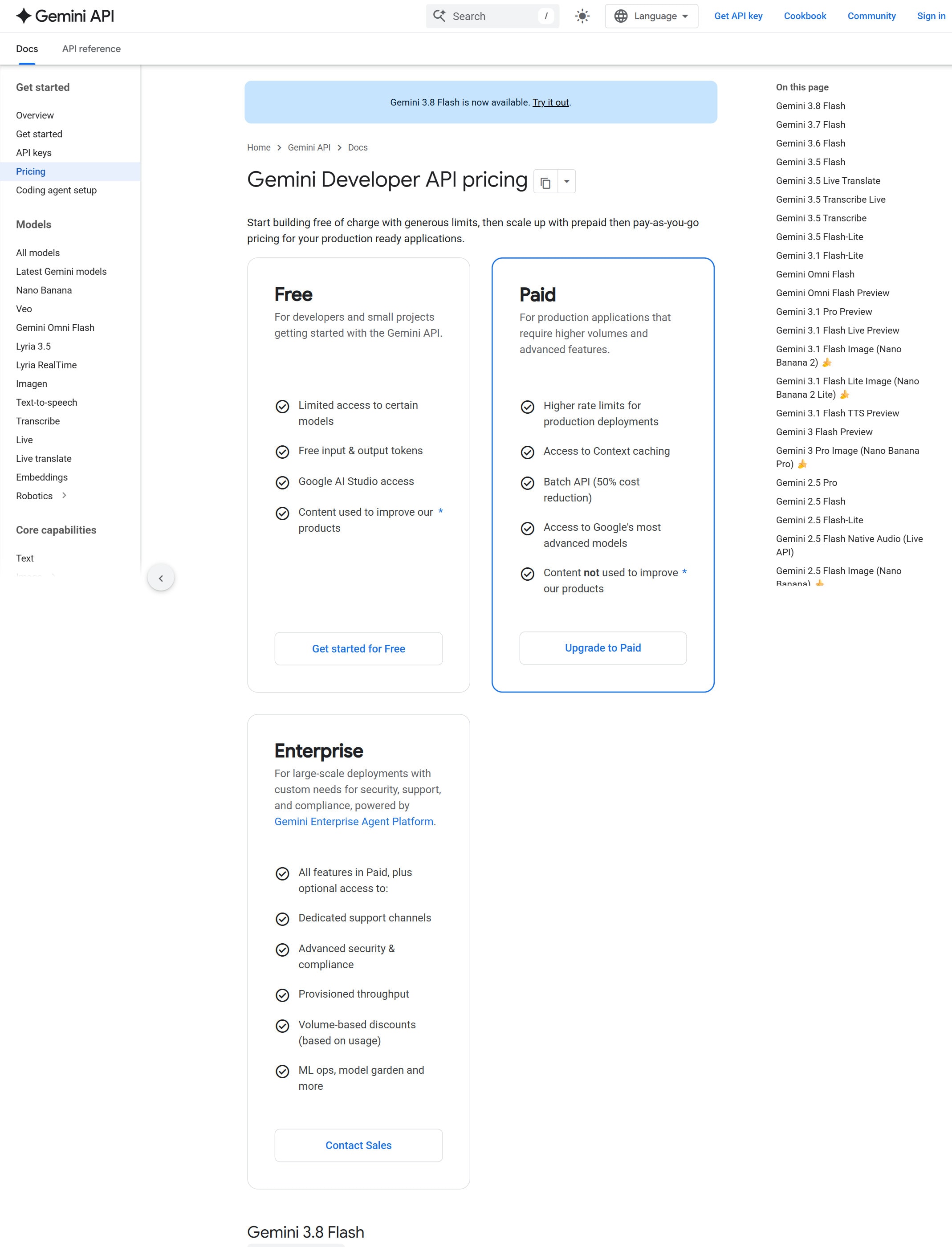
Free access and paid AI plans are listed on Google's official Gemini subscription page.

We link to Google Gemini subscriptions instead of copying every price into this page. That is safer because AI tool pricing, usage limits, and plan names change often.

How to decide

Choose this if your daily workflow already depends on Google and you want AI inside that habit.

Compare Gemini with other subscription and API options before standardizing across a team.

Related tools

Compare Gemini with other tools in nearby categories.

OpenAI

ChatGPT

Free plan

A general AI assistant for writing, research, planning, data analysis, coding help, and everyday work.

Anthropic

Claude

Free plan

A conversational AI assistant often used for long documents, careful writing, coding help, and structured reasoning.