Back to AI tools directory

Google

Google Veo 3 guide for practical AI users

Google's video generation model. It makes short clips with sound and dialogue from a text prompt or an image, inside the Gemini app, Google Flow, and the Gemini API.

Quick take

Google Veo 3 is Google's video generation model. It makes short clips, usually up to about eight seconds, and it generates the sound and dialogue along with the picture. It is strong for single shots, ad concepts, product teasers, and social clips. It is weak for long stories, because you have to generate many short clips and stitch them together while keeping characters and style consistent by hand. Access runs through the Gemini app, Google Flow, Google AI Studio, and the Gemini API.

Best fit

Use Veo 3 when you need a short, good-looking clip fast and you can work in cuts rather than one long take. It fits marketers making ad variations, founders making a product teaser, and designers testing a visual idea before booking a real shoot.

First setup

1

Pick where you will work. Use the Gemini app for quick clips, Google Flow for scene-by-scene edits, or the Gemini API if you are building video into your own app.

2

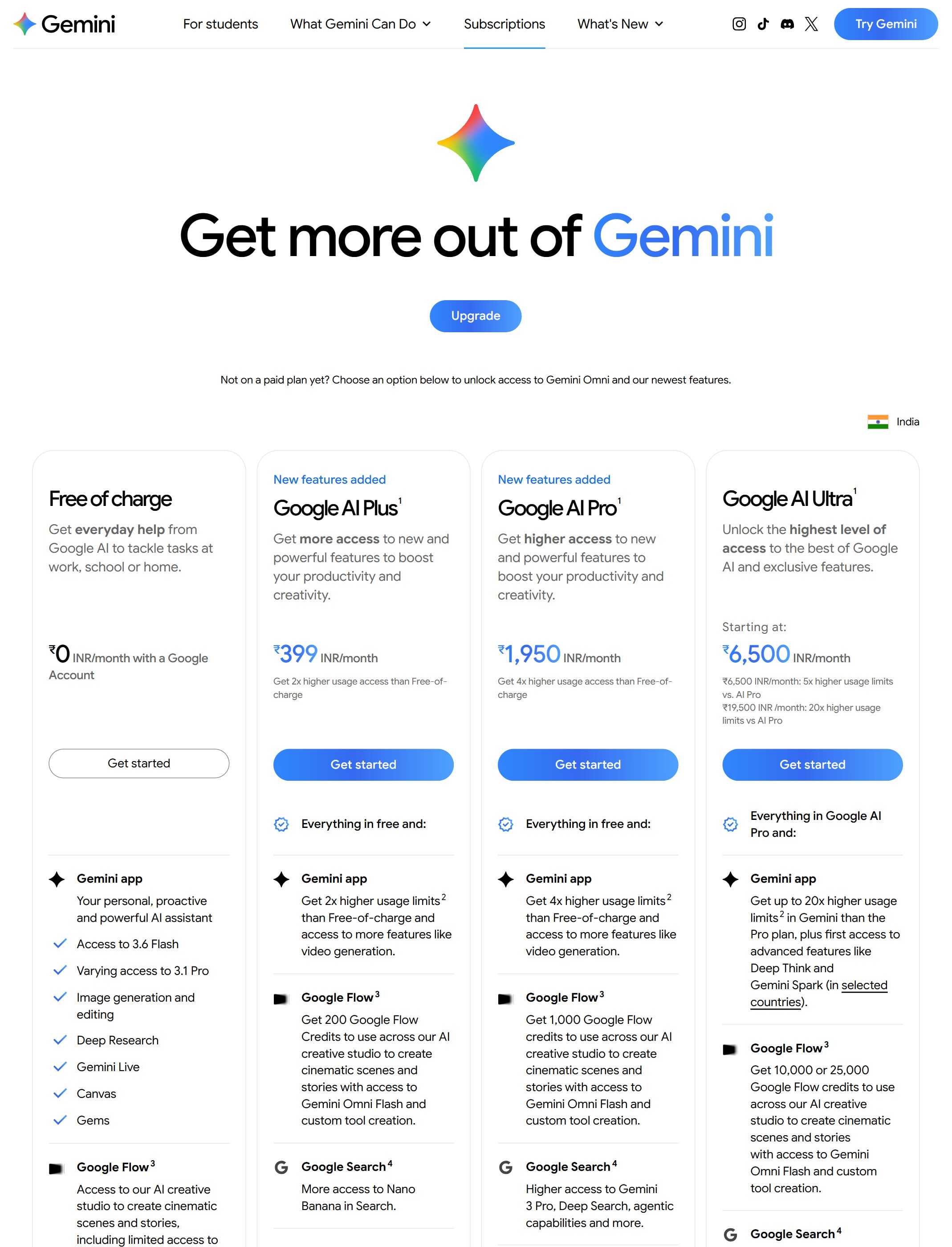
Sign in with a Google account on a paid Google AI plan, since video generation is not part of the free tier.

3

Write one clear shot. Name the subject, the action, the camera move, the setting, the mood, and the sound or dialogue you want.

4

Generate two or three versions, compare them, and keep the one that needs the least fixing.

5

Download the clip and finish it in a normal editor. Trim, add captions, and cut clips together for anything longer than one shot.

Workflows worth trying

Make ad variations for one product

Useful for marketers who need several short clips to test on social before spending on a paid campaign.

  1. Write one base shot that shows the product, the setting, and the feeling you want.
  2. Generate three or four versions that change one thing each, such as the camera angle, the setting, or the spoken line.
  3. Pick the two clearest clips and add captions in your editor.
  4. Test them as short ads, then keep the version that gets the best response.

Turn a still image into a short moving shot

Useful for designers and founders who have one strong image and want motion for a landing page or social post.

  1. Start from your image and describe the small motion you want, such as a slow push in or a light breeze.
  2. Keep the prompt simple so the model does not change the look of the image.
  3. Generate a few takes and pick the one that keeps the subject stable.
  4. Export the clip and use it as a short loop or background.

Prompt recipes

Single shot with sound

An 8-second shot of [subject] [doing action] in [setting]. Camera: [slow push in]. Mood: [calm, warm light]. Audio: [ambient sound] plus one short spoken line for [subject]. Keep it realistic and physically correct.

It gives the model the subject, action, camera move, setting, and sound in one place, so the clip matches what you pictured instead of guessing.

Image to motion

Use this image as the first frame. Add only this motion: [describe the small movement]. Do not change the style, colors, or subject. Hold the shot steady.

It limits the change to motion, which keeps the model from redrawing the image and losing the look you started with.

Buying advice

Pick the plan by how much you generate

Video generation sits on the paid Google AI plans, so pick the tier that fits how many clips you make in a month rather than the top plan by default.

Use Flow for real editing, the app for quick tries

Google Flow is built for scene-by-scene video work, while the Gemini app is faster for a single clip. Try both before you commit to one habit.

Price the API route before you scale

If you plan to make video inside your own product, price the Gemini API path and its per-clip cost before you build, since heavy use adds up quickly.

Watchouts

  • OpenAI discontinued Sora in 2026. The Sora app and website shut down around April 2026 and its API is being sunset later in the year, so Google Veo 3 and Runway are now the main hosted AI video options.
  • AI video still needs a human check for rights, likeness, and provenance before you publish. Veo outputs carry SynthID provenance metadata and often a visible watermark, so treat every clip as AI-made and confirm you have the right to use what is in the frame.
  • Clips are short, usually up to about eight seconds. Anything longer means generating several clips and cutting them together, and keeping the same character or style across clips takes extra work.
  • The model can still get physics, hands, on-screen text, and small details wrong. Watch full clips at full size before you use them, not just the thumbnail.

Best for

  • Short marketing and social clips with matching sound
  • Ad concepts, product teasers, and pitch visuals made from a written prompt
  • Turning a single still image into a short moving shot

Not for

  • Long-form video that needs the same characters across many minutes
  • Anything you cannot check for rights, likeness, and provenance before publishing

How to use it well

Write a clear shot with subject, action, camera move, setting, mood, and the sound you want. Generate a few short takes, keep the best, then trim and cut them together in a normal video editor. Check every clip for rights and accuracy before you publish.

Pricing note

Video generation needs a paid Google AI plan. Paid plans are listed on Google's official AI plans page.

We link to Google AI plans instead of copying every price into this page. That is safer because AI tool pricing, usage limits, and plan names change often.

How to decide

Choose this if you need short AI video clips with sound for ads, social, or product demos and you already work inside Google tools.

Use the AI cost calculator to compare a paid Google AI plan against per-clip Gemini API usage before you scale video output.

Related tools

Compare Google Veo 3 with other tools in nearby categories.

Google

Gemini

Free plan

Google's AI assistant for search-style help, writing, productivity, image work, and Workspace-related tasks.