Back to AI tools directory

Anysphere

Cursor guide for practical AI users

An AI coding editor for editing projects, asking questions about a codebase, and making changes with agent-style workflows.

Quick take

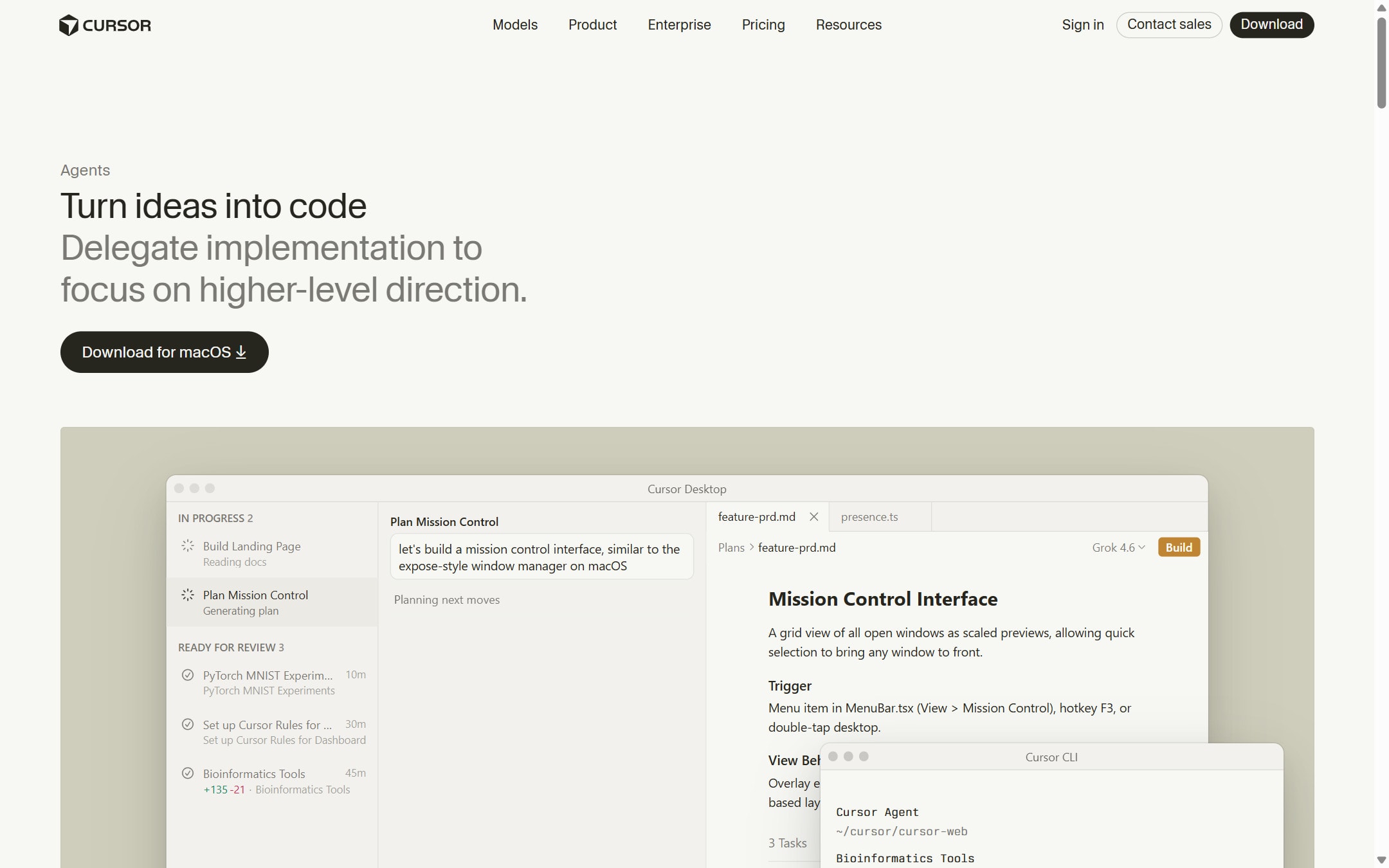
Cursor is useful when you already have a codebase and want AI inside the editor. It can answer questions, edit files, run agent-style tasks, and follow project rules. It is not a replacement for code review. The safest way to use it is to ask for the plan first, make a small change, inspect the diff, then run tests.

Best fit

Use Cursor for small features, bug fixes, refactors, tests, codebase questions, and repeated project patterns. It works best when someone technical can review the changes before they ship.

First setup

1

Install Cursor and open one real project, not a throwaway example.

2

Turn on the privacy setting that matches your company policy before indexing or asking about private code.

3

Add a short project rule for stack, style, testing commands, and files Cursor should avoid.

4

Start in Ask mode when you are learning the codebase. Move to Agent only when you are ready to review edits.

5

Run the project tests or build after every meaningful change.

Workflows worth trying

Understand a codebase before editing

Useful when you joined a project, inherited a repo, or need to touch code you did not write.

  1. Ask Cursor which files are involved in the feature or bug.
  2. Ask it to explain the current flow before suggesting changes.
  3. Ask for the smallest safe edit and the test command to run.
  4. Make the edit only after the plan makes sense.

Make a small multi-file change

Useful for UI fixes, API changes, validation updates, tests, and repeated boilerplate.

  1. Describe the exact behavior you want and what must not change.
  2. Ask Cursor to edit only the relevant files.
  3. Review the diff file by file.
  4. Run tests, lint, or the local app before committing.

Turn repeated prompts into rules

Useful when you keep telling Cursor the same stack rules, naming patterns, or testing habits.

  1. Write one focused rule in `.cursor/rules` for the repeated pattern.
  2. Keep the rule short and include concrete examples.
  3. Scope the rule to the folder or file type where it applies.
  4. Update the rule when the team changes how the project works.

Prompt recipes

Plan before edit

Before changing files, inspect the relevant code and tell me the smallest safe plan. List files you will touch, risks, and the test command I should run.

It slows Cursor down before it edits, which makes review easier.

Tight change request

Make this change: [change]. Do not refactor unrelated code. Preserve existing behavior unless I named it. After editing, summarize the diff and tests to run.

It reduces drive-by refactors and forces the output back to a review checklist.

Rule from repeated feedback

Create a Cursor rule for this repo based on this feedback: [paste feedback]. Keep it short, specific, and scoped to the files where it matters.

It turns a lesson from one edit into reusable project guidance.

Buying advice

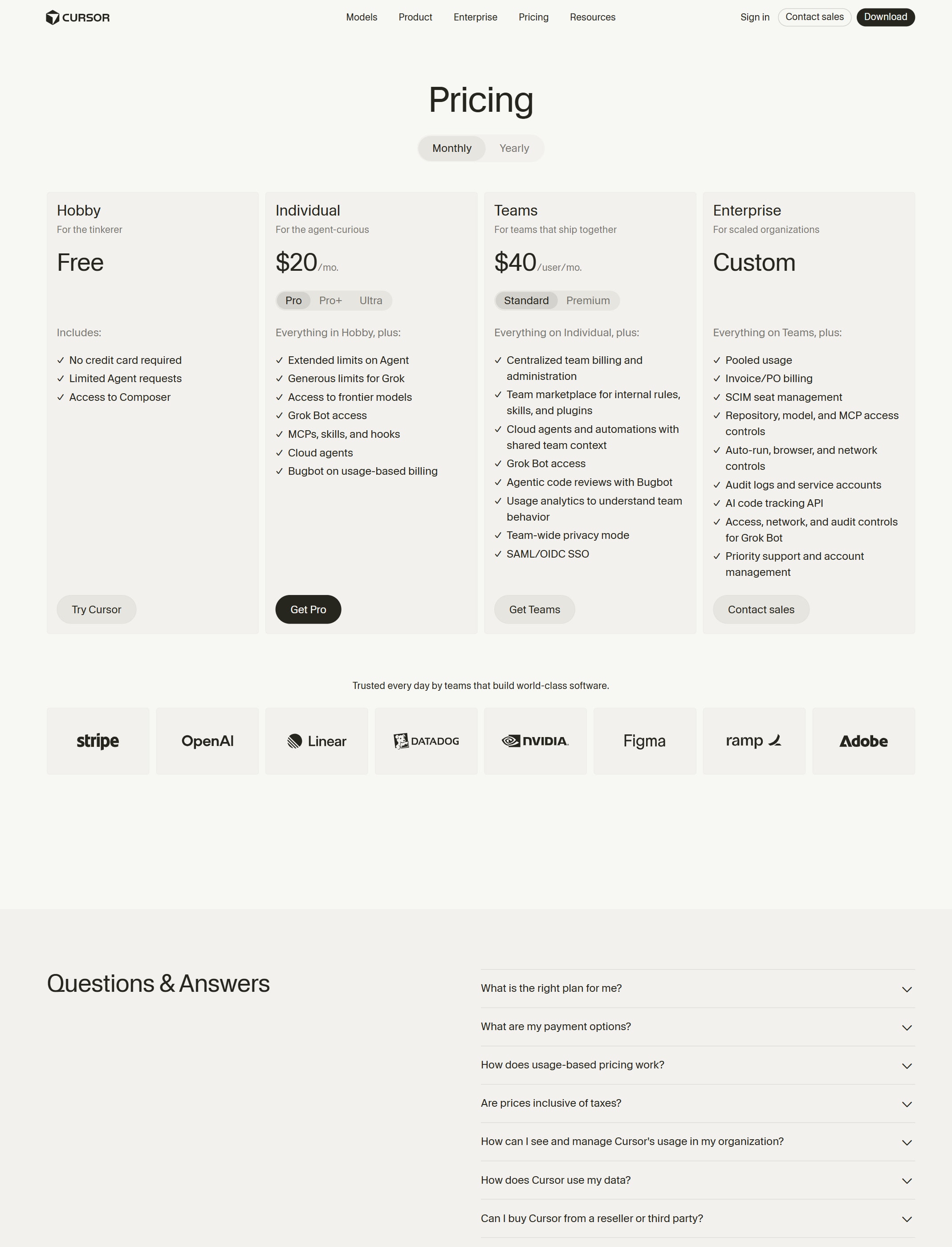
Free is only for testing fit

Use the free plan to see whether Cursor fits your coding style and project setup.

Pro fits regular solo coding

Pro is the normal starting point if you use Agent often enough that limited free usage gets in the way.

Pro+ or Ultra is for daily agent users

Cursor says Pro+ fits daily agent users and Ultra fits agent power users. Check your usage dashboard before moving up.

Teams or Enterprise is for shared control

Use team plans when billing, admin controls, privacy mode enforcement, usage analytics, or enterprise controls matter.

Watchouts

  • Do not let Agent edit a large area of the repo without a plan you understand.
  • Do not skip diff review. AI edits can pass the eye test and still break behavior.
  • Do not put secrets or sensitive files in reach without checking privacy settings and ignore rules.
  • Do not buy Cursor from a reseller. Cursor says subscriptions are sold directly through cursor.com.

Official sources to check

Best for

  • Working inside a real codebase
  • Making multi-file edits faster
  • Asking code-aware questions while you build

Not for

  • People who do not want to touch code at all
  • Projects where nobody can review the generated changes

How to use it well

Start with one small feature or bug. Ask Cursor to explain the affected files first, then request the change, review the diff, and run the tests.

Pricing note

Free and paid plans are listed on Cursor's official pricing page.

We link to Cursor pricing instead of copying every price into this page. That is safer because AI tool pricing, usage limits, and plan names change often.

How to decide

Choose this if you are actively editing a product, landing page, script, or app and want AI inside the editor.

Use the calculator if you are choosing between editor subscriptions and direct API-heavy workflows.

Related tools

Compare Cursor with other tools in nearby categories.

Anthropic

Claude

Free plan

A conversational AI assistant often used for long documents, careful writing, coding help, and structured reasoning.

GitHub

GitHub Copilot

Free plan

AI coding help from GitHub for suggestions, chat, code review support, and editor workflows.

Replit

Replit

Free plan

A browser-based coding workspace with AI support for building, testing, and deploying small projects.