Back to AI tools directory

Zapier

Zapier guide for practical AI users

An automation platform for connecting apps and using AI to reduce repeated manual work.

Quick take

Zapier is useful when work is already repeatable but still being moved by hand. Think leads, forms, emails, CRM updates, Slack alerts, support tags, invoice steps, and content handoffs. It is weak when the process is vague. If the team cannot describe the trigger, the data, and the next action, Zapier will only automate confusion.

Best fit

Use Zapier when one app receives information and another app needs to act on it. The best workflows are boring, frequent, and easy to check.

First setup

1

Write the workflow before opening Zapier. Use this format: when this happens, check this, then do this.

2

Pick one trigger and one final result. Avoid building a long workflow on the first attempt.

3

Test with real sample data, not a perfect fake example.

4

Add a failure path. At minimum, send yourself a Slack or email alert when an important step fails.

5

Check task usage before turning on a workflow that can run many times per day.

Workflows worth trying

Lead capture and routing

Good for founders and marketers who receive leads from forms, ads, webinars, or newsletter CTAs.

  1. Trigger when a new form, ad lead, or spreadsheet row appears.
  2. Clean the email, company name, and source fields before sending data anywhere else.
  3. Create or update the contact in your CRM or table.
  4. Send a Slack alert only for leads that match your rules, such as company size, country, or budget.

Content operations handoff

Useful when one blog or newsletter needs social posts, design tasks, and internal reminders.

  1. Trigger when a new content item is marked ready.
  2. Create tasks for social copy, design assets, and newsletter placement.
  3. Add the source URL and deadline to every task so people do not hunt for context.
  4. Send one summary message to the team instead of many noisy alerts.

AI-assisted inbox triage

Useful when messages need classification before a human replies.

  1. Trigger when a new support email, form response, or ticket arrives.
  2. Use AI by Zapier to extract category, urgency, customer type, and suggested next action.
  3. Route high-priority items to a person and send low-risk items to a queue.
  4. Store the AI output so you can audit wrong classifications later.

Prompt recipes

Automation scope

Workflow: [describe current manual process]. Identify the trigger, required fields, approval point, failure alert, and final action. Keep the first version under 5 steps.

It forces the process into a buildable shape before you start connecting apps.

AI by Zapier extraction

From this input, return only these fields: category, urgency, customer_type, summary, next_action. If a field is unclear, return unknown.

It gives the AI step a strict output shape, which makes later Zap steps easier to map.

Failure check

Review this automation plan. What can fail, what data can be missing, and where should a human approve before the workflow continues?

It catches weak spots before the automation touches real customer or revenue data.

Buying advice

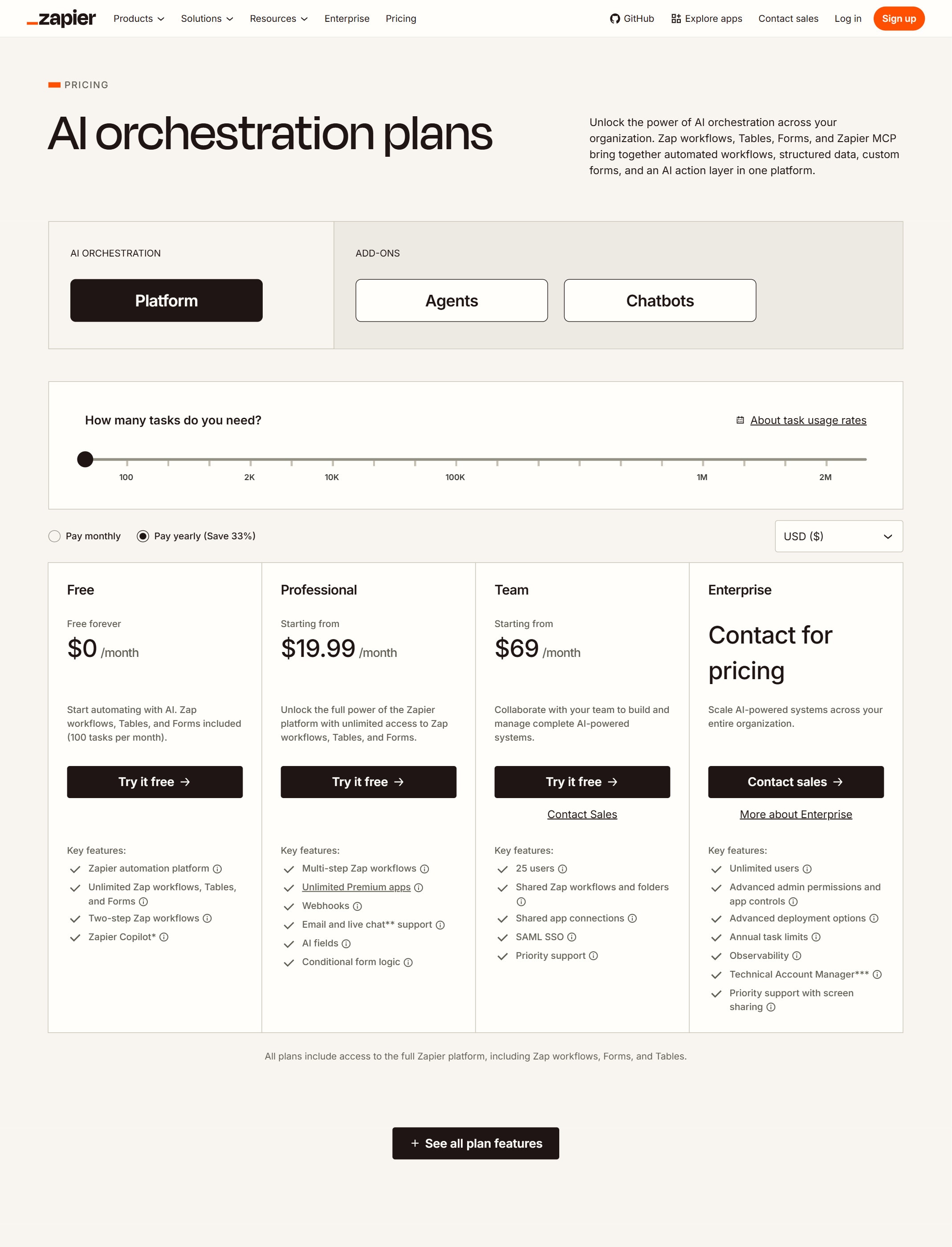
Free is for proving the workflow

Use Free to test simple two-step automations and confirm that the trigger and action behave the way you expect.

Professional is where serious Zaps usually start

Professional makes sense when you need multi-step Zaps, premium apps, webhooks, or more flexible automation.

Team is for shared ownership

Use Team when more than one person needs to manage workflows, apps, permissions, and business-critical automations.

Estimate task volume before buying

Zapier's own plan guidance says usage is a main plan-selection factor. A small workflow can become expensive if it runs hundreds of times per day.

Watchouts

  • Do not automate a process nobody owns. Someone needs to maintain it when apps, fields, or permissions change.
  • Do not ignore task usage. High-frequency triggers can burn through a plan faster than expected.
  • Do not put AI in the middle of a workflow without a review point for risky actions.
  • Do not treat a successful test as proof the Zap is safe. Test missing fields, duplicate records, bad emails, and app connection failures.

Best for

  • Moving leads, forms, emails, and records between apps
  • Simple internal workflows
  • Automations that do not need custom code

Not for

  • Broken processes that have not been written down
  • Complex engineering workflows that need custom logic and tests

How to use it well

Write the workflow in plain English first. Define the trigger, the exact data to move, the approval point, and the failure alert before you build the automation.

Pricing note

Free and paid plans are listed on Zapier's official pricing page.

We link to Zapier pricing instead of copying every price into this page. That is safer because AI tool pricing, usage limits, and plan names change often.

How to decide

Choose this if the job is repeated handoff work between apps, not writing or design.

Check task volume before relying on automation for high-frequency workflows.

Related tools

Compare Zapier with other tools in nearby categories.

OpenAI

ChatGPT

Free plan

A general AI assistant for writing, research, planning, data analysis, coding help, and everyday work.

Anthropic

Claude

Free plan

A conversational AI assistant often used for long documents, careful writing, coding help, and structured reasoning.

Google

Gemini

Free plan

Google's AI assistant for search-style help, writing, productivity, image work, and Workspace-related tasks.