Back to AI tools directory

Notion

Notion AI guide for practical AI users

AI inside Notion for notes, documents, summaries, project pages, and knowledge work.

Quick take

Notion AI is most useful when your team already keeps notes, projects, docs, and knowledge in Notion. It can search workspace content, draft pages, summarize meetings, autofill databases, and use connected apps on higher plans. It is not the best first AI tool if your information is scattered everywhere and nobody owns the workspace structure.

Best fit

Use Notion AI for company knowledge, project docs, meeting notes, research reports, database summaries, and internal operating pages. It works best when the source pages are clean, current, and permissioned correctly.

First setup

1

Clean up the workspace first. Archive old pages, fix page titles, and move important docs into the right teamspace.

2

Check Notion AI settings for web search, data sharing, connectors, personalization, and meeting notes before using private information.

3

Create one source page for the project, then link the notes, tasks, decisions, and meeting pages that matter.

4

Ask Notion AI to answer from the workspace first before using web search or connected apps.

5

Review the citations and source pages before turning the answer into a decision or customer-facing document.

Workflows worth trying

Turn messy notes into an operating doc

Useful when a founder, operator, or team lead has scattered notes but needs a page people can actually use.

  1. Put the raw notes, meeting points, and links into one Notion page.
  2. Ask Notion AI to extract decisions, open questions, owners, and next actions.
  3. Turn the output into a short doc with headings and a task database if needed.
  4. Add a human-owned status line at the top so people know whether the page is current.

Find answers across team knowledge

Useful when information is spread across project pages, meeting notes, docs, and connected apps.

  1. Ask a specific question and include the project, client, team, or time period.
  2. Check the pages or connected app sources Notion AI cites.
  3. If the answer is weak, ask which source page is missing or outdated.
  4. Update the source page after you verify the answer so the next search improves.

Summarize meetings into follow-up work

Useful when meeting notes should become decisions and tasks, not another unread page.

  1. Use AI Meeting Notes only when the meeting participants and workspace policy allow it.
  2. Ask for decisions, blockers, action items, owners, and dates.
  3. Move tasks into the project database instead of leaving them inside the transcript.
  4. Delete or retain transcripts based on your workspace policy.

Prompt recipes

Workspace answer with citations

Answer using our Notion workspace first. Cite the pages you used. If the workspace does not contain the answer, say what page or source is missing.

It stops Notion AI from giving a broad answer when the real value is inside your workspace.

Meeting to tasks

Summarize this meeting into decisions, action items, owners, due dates, blockers, and questions. Keep it short and mark anything that was unclear.

It turns meeting notes into work people can act on.

Database cleanup

Review this database and suggest which properties are unclear, duplicated, unused, or missing. Do not change data yet. Give me a cleanup plan first.

It improves the workspace before automation makes the mess faster.

Buying advice

Free and Plus are fine for trial use

Use the lower plans to test basic AI writing, summaries, and database help before buying around AI-heavy workflows.

Business is where AI becomes more useful

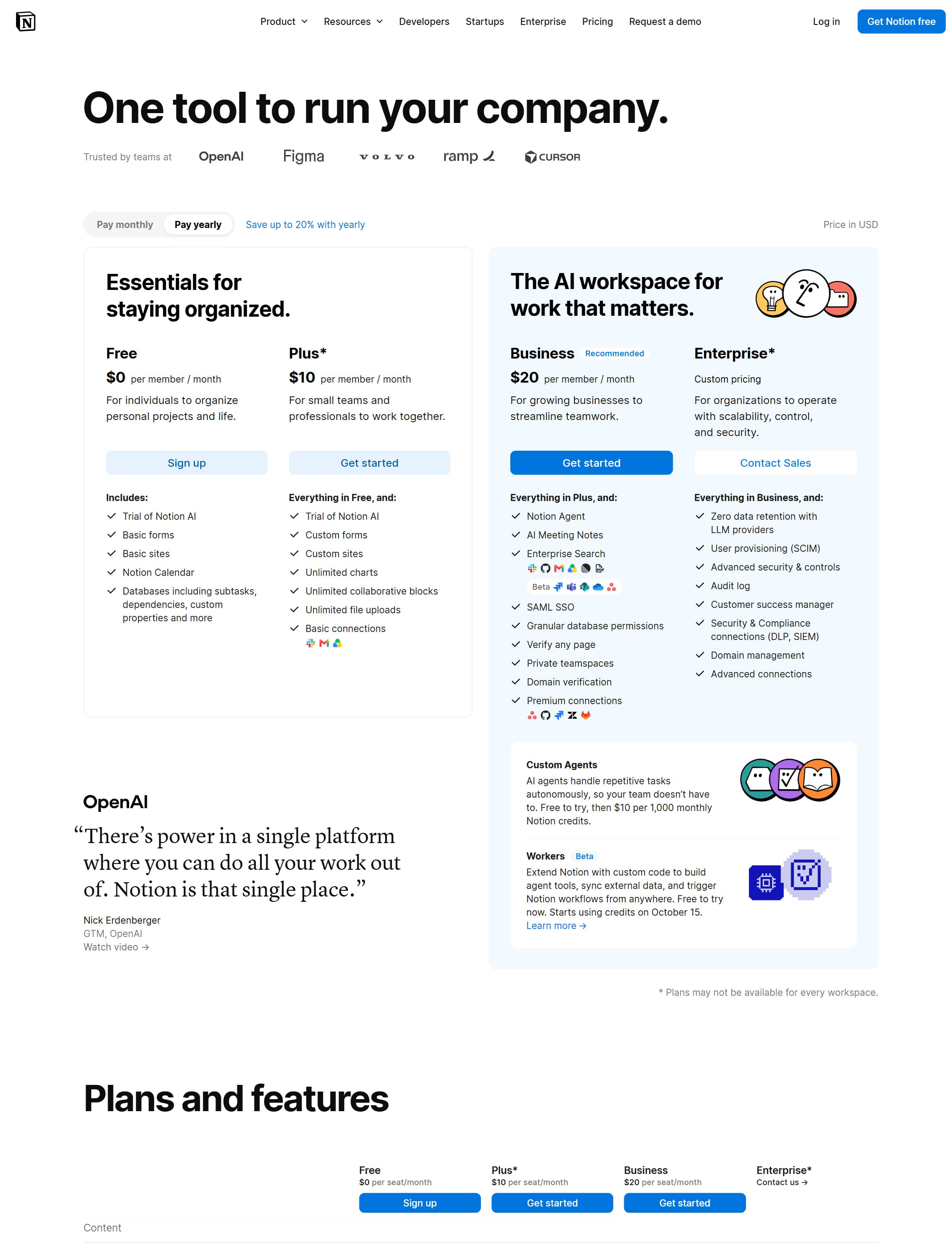
Notion lists Notion Agent, AI Meeting Notes, Enterprise Search, Research Mode, and premium connections on Business.

Enterprise is for governance

Enterprise is the better fit when advanced security, audit logs, DLP or SIEM connections, zero data retention with LLM providers, and domain controls matter.

Check credits before using agents

Notion prices Custom Agents through Notion credits. Check the pricing page before building repeat agent workflows.

Watchouts

  • Do not expect Notion AI to fix bad workspace structure. Clean pages and permissions first.
  • Do not connect external apps unless the workspace owner and app admin understand the access being granted.
  • Do not use AI meeting notes without checking participant consent, workspace settings, and transcript retention.
  • Do not assume AI can see everything. It follows workspace and connector permissions.

Official sources to check

Best for

  • Teams that already use Notion
  • Summarizing notes and meetings
  • Turning scattered information into docs and checklists

Not for

  • People who do not use Notion as a workspace
  • Deep coding, image generation, or video work

How to use it well

Keep source notes in one place, then ask Notion AI to summarize, extract actions, and rewrite pages for the audience that will use them.

Pricing note

Plan details and AI add-ons are listed on Notion's official pricing page.

We link to Notion pricing instead of copying every price into this page. That is safer because AI tool pricing, usage limits, and plan names change often.

How to decide

Choose this if your main problem is keeping plans, notes, and project knowledge usable.

Related tools

Compare Notion AI with other tools in nearby categories.

OpenAI

ChatGPT

Free plan

A general AI assistant for writing, research, planning, data analysis, coding help, and everyday work.

Anthropic

Claude

Free plan

A conversational AI assistant often used for long documents, careful writing, coding help, and structured reasoning.

Google

Gemini

Free plan

Google's AI assistant for search-style help, writing, productivity, image work, and Workspace-related tasks.